
Native Mac options · Free and paid editors · Real screenshots
Notepad++ Alternatives for Mac: 8 Editors Compared
Need a Notepad++ alternative for Mac? notePad++++ runs natively on macOS with tabs, Column Mode, multi-keyword search, live Markdown preview and text-processing scripts. Compare it with seven other editors below, including free choices for plain text and tools for coding projects.
Written by the developer of notePad++++, an independent Mac editor. Our App images are real captures using demonstration files; competitor images come from the official sources credited below. Recommendations are based on tasks, without a speed or memory ranking.
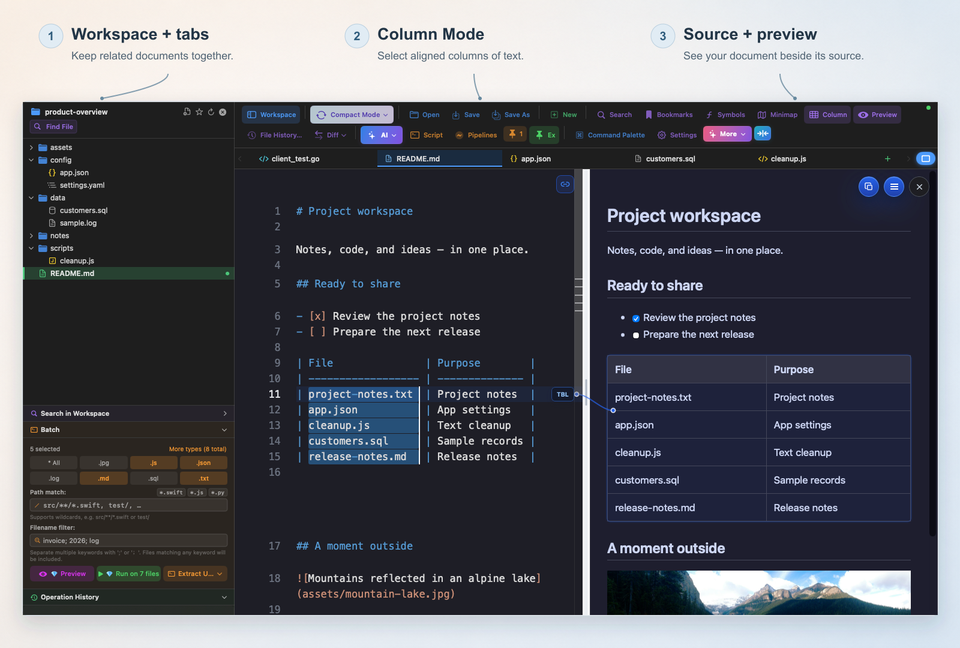
One real notePad++++ window, three useful areas: 1. Workspace + tabs keep related files together. 2. Column Mode selects the same character columns across five rows. 3. Source + preview shows a Markdown document beside its rendered result. The labels and arrows are explanations added outside the captured App interface.
On this page
Start here: a shortlist for your main task
For tabs, column editing and recurring text work in a native Mac app, start by trying notePad++++. For a free plain-text editor, look at CotEditor. For a familiar Notepad++ interface and ported plugins, consider Nextpad++. VS Code is a different choice when you need a terminal, debugging and development extensions.
If you mean the basic Windows Notepad rather than Notepad++, the built-in macOS TextEdit can handle simple notes in plain-text mode. The eight-editor shortlist below is for work that needs more than opening and saving a note.
- notePad++++: native Mac editing, multi-keyword search and scripts with folder previews.
- Nextpad++ or NotepadNext: familiar Notepad++-style editing; check their different origins and releases.
- CotEditor: a free Mac-native option for everyday text and encodings.
- BBEdit: multi-file search, text transformations and scripting.
- VS Code or Sublime Text: coding projects, navigation and extension packages.
- TextMate: snippets, custom commands, macros and bundles.
Eight editors at a glance
| Editor | Cost model | Start here for | Migration check |
|---|---|---|---|
| notePad++++ | See App Store terms; advanced tools require Pro or an eligible trial | Native Mac tabs, columns, multi-keyword search and text scripts | No Windows Notepad++ plugins; try the exact task on your files. |
| Nextpad++ | Free; GPL | Familiar Notepad++ editing and ported plugins | Check the plugin catalog; Mac build requires macOS 11+. |
| NotepadNext | Free; GPL-3.0 | An open-source Notepad++-style layout | Read the project’s reliability warning; verify critical operations. |
| CotEditor | Free; open source | Mac-native plain text and file encodings | Check the current macOS requirements or use its older-release archive. |
| BBEdit | 30-day evaluation; Free Mode; paid exclusive features | Multi-file search, text transformations, scripting | Check Free Mode limits; BBEdit 16 requires macOS 14+. |
| TextMate | Open source | Snippets, commands, and bundles | Different extension model; site lists macOS 10.12+. |
| Sublime Text | Free evaluation; license for continued use | Multiple selections and code navigation | Check package availability and the current license terms. |
| VS Code | Free editor; extensions may have separate terms | Coding projects, debugging, and language tooling | Check supported macOS releases and required extensions. |
notePad++++: a native Mac editor for familiar text tasks
notePad++++ runs directly on macOS. Open text files in tabs, use Column Mode for aligned edits, find text with Regex Find & Replace or Workspace Search, and check Markdown in a live preview. You can use these workflows without installing Windows or Wine.
The opening screenshot is a practical map of the window. Start on the left with the workspace files, move between tabs above the editor, select a rectangular block in the source, and inspect the rendered document on the right. It shows actual controls and a real selection, rather than a mock interface.
- Tabs and a workspace: keep notes, scripts and configuration files in the same working context.
- Column Mode: select the same character positions on several lines for an aligned edit.
- Multi-keyword search: require every search term in the same line or paragraph.
- Built-in and custom scripts: preview a transformation, then reuse it across selected files.
Try the Mac workflows shown in notePad++++
Open a copy of your TXT file, select a column, or search for several keywords. Add live Markdown preview or a reusable script when the task needs it. Some advanced tools require Pro access or an eligible trial; check current App Store terms.
Download notePad++++ on the App StoreSee the App Store listing for current pricing and macOS requirements.
Find several keywords in the same line or paragraph
Press Cmd+F to open Search / Replace. With Advanced Regex off, choose Multi-Keyword AND (Line), then enter payment timeout. Both “payment timeout” and “timeout during payment” qualify because both words appear on the same line; a line containing only one word does not.
The real close-up below shows the second of four matching lines. For a record spread over several nonblank lines, choose Multi-Keyword AND (Paragraph) instead. These modes accept two to eight literal terms and disable replacement; use a separate editing operation when you need to change the text. Advanced search requires Pro access or an eligible trial.
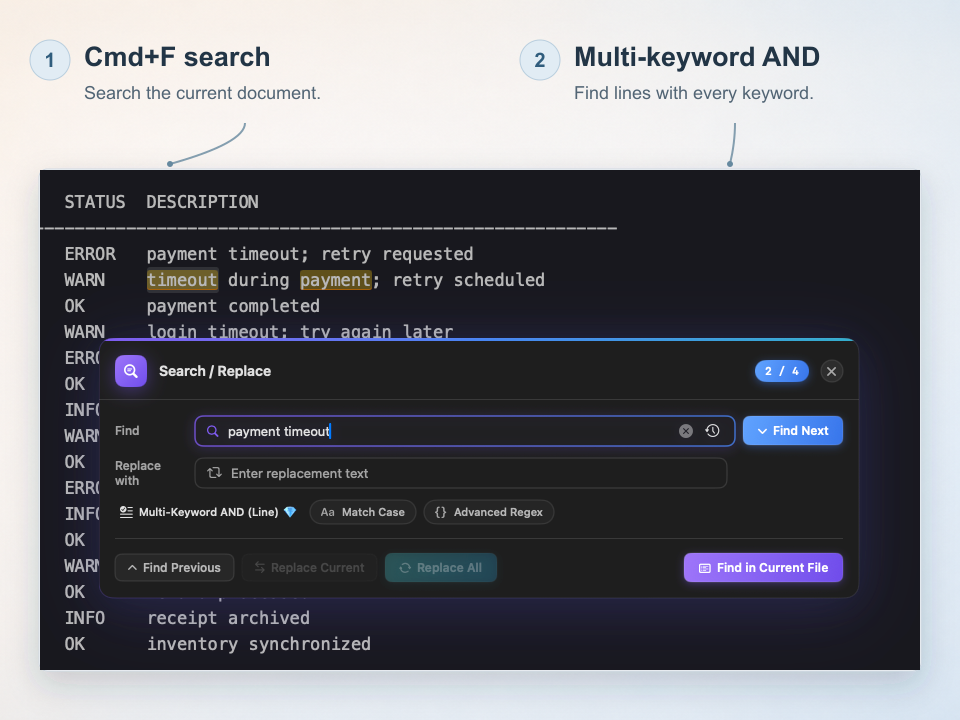
Real Cmd+F search, with explanatory labels outside the capture. The selected line contains both words in a different order; the counter shows the second of four matches in this demonstration file.
Preview a script across a folder before applying it
Choose a built-in script for a job such as extracting URLs, sorting lines or removing duplicates. When the available rules do not fit, copy a built-in into My Scripts or write a supported JavaScript rule. Optional AI assistance can help draft a script after you configure your own service; review its code and output before using it.
For a folder, select the workspace, file types and filters, then use Preview to inspect the proposed changes. The real Extract URLs example below shows labels being removed while the URLs remain, including a repeated URL. Extracting links and deduplicating them are different operations. Apply is a separate action that writes the reviewed result.
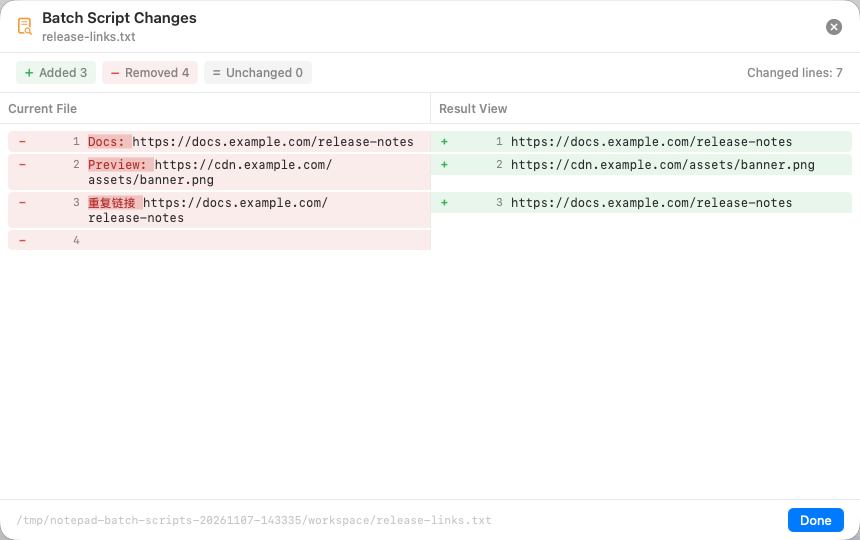
Actual script preview: inspect the original text on the left and the proposed file content on the right. This Extract URLs example retains duplicates; it does not demonstrate deduplication.
Check the backups and recovery options after a batch edit
After applying a folder operation, its Operation History entry lists the files changed and provides access to the saved differences and Restore this operation. The real example below lists three files changed by Extract URLs.
Batch processing and its history require Pro access or an eligible trial. Operation backups are retained for seven days. Restoration skips ineligible files, including files changed since the operation or open with unsaved edits. Check the outcome and keep normal backups for important work.
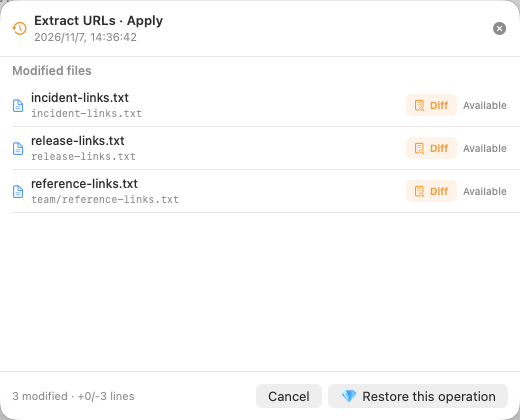
Actual operation history after a three-file batch edit. The restore control is available for this operation while its eligible backups remain. This smaller capture is displayed without upscaling.
Nextpad++: an independent port for familiar editing
Nextpad++ describes itself as a free, open-source community port of Notepad++. Its Mac download page lists macOS 11 or later and a universal build for Intel and Apple silicon. Its published features include regex search, find in files, split views, and macro recording.
The important migration check is the plugin catalog. Nextpad++ supports plugins ported for its platform; a Windows plugin binary is not automatically a working Mac plugin. Check the exact plugin and version before depending on it. Consider this option when a familiar Notepad++ interface and available ported plugins are your priorities.
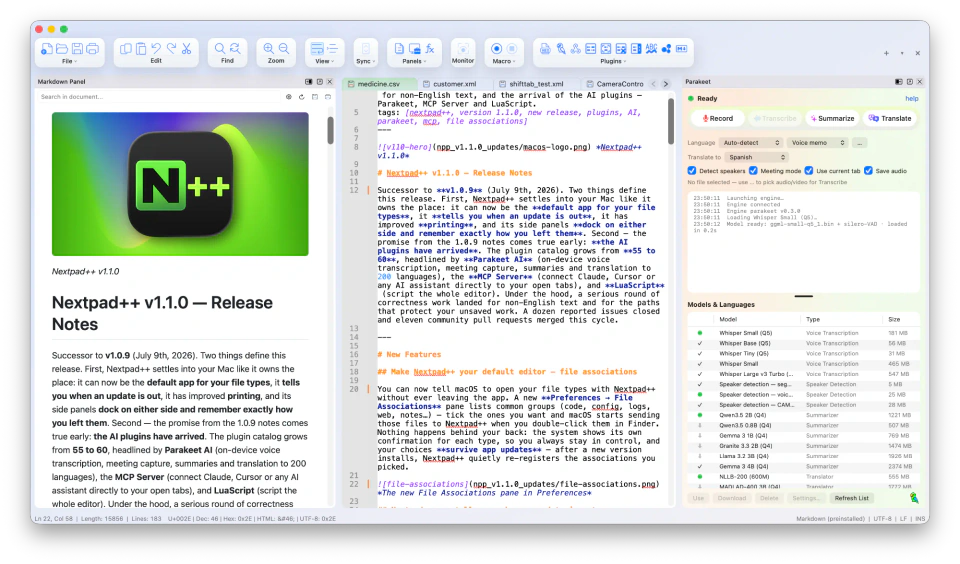
Official Mac screenshot: document tabs and Markdown preview sit alongside a plugin panel. Check the current plugin catalog for the tools you need.
Source: Nextpad++ official About page
- Good fit: familiar editing, macros, and available ported plugins.
- Check first: the exact plugin you need and the current Mac download requirements.
NotepadNext: an open-source reimplementation
NotepadNext is a separate, Qt-based reimplementation of Notepad++, with releases for Windows, Linux, and macOS. It is released under GPL-3.0; its repository links to Mac disk images and installation instructions.
Its README also cautions against relying on it for critically important work and acknowledges incomplete features. That warning comes from the project itself. Treat it as a candidate to evaluate on disposable copies, and do not infer Windows plugin compatibility from the similar name or appearance.
- Good fit: an open-source Notepad++-style editor across platforms.
- Check first: release notes and the operations you need on copies of your files.
CotEditor: free Mac-native plain-text editing
CotEditor is a free, open-source editor focused on macOS. Its site documents syntax highlighting, regex find and replace, split editing, scripting, automatic backup, and tools for identifying characters that cannot be represented in a chosen encoding.
Consider it for individual text files, scripts and multilingual documents when you want a conventional Mac interface. The project maintains an archive of releases for older systems. Check the requirements for the version you install, and evaluate folder-wide editing separately if that is central to your work.
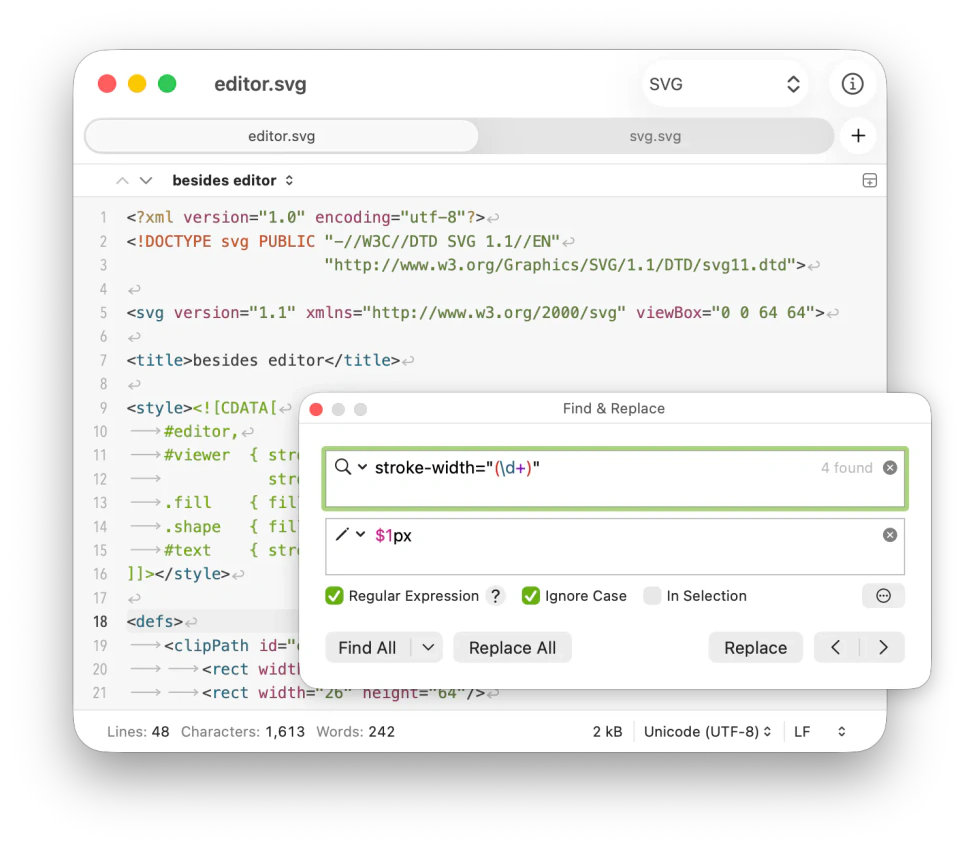
Official screenshot: the Find & Replace dialog shows a regular expression and a captured value used in the replacement. The status bar displays file encoding and line endings.
Source: CotEditor official website
- Good fit: free everyday plain text and attention to file encodings.
- Check first: the supported macOS version and your folder-wide editing needs.
BBEdit: multi-file search and text processing
BBEdit documents regex search, replacement across multiple files, project tools, scripting, and HTML editing. BBEdit 16 requires macOS 14 or later and supports Intel and Apple silicon. It is a candidate when the central job is inspecting or transforming text across many files.
All features are available during its 30-day evaluation. Afterward, Free Mode remains available, while exclusive features require a license or an App Store subscription. Before choosing it for an ongoing workflow, check whether each feature you need is included in Free Mode.
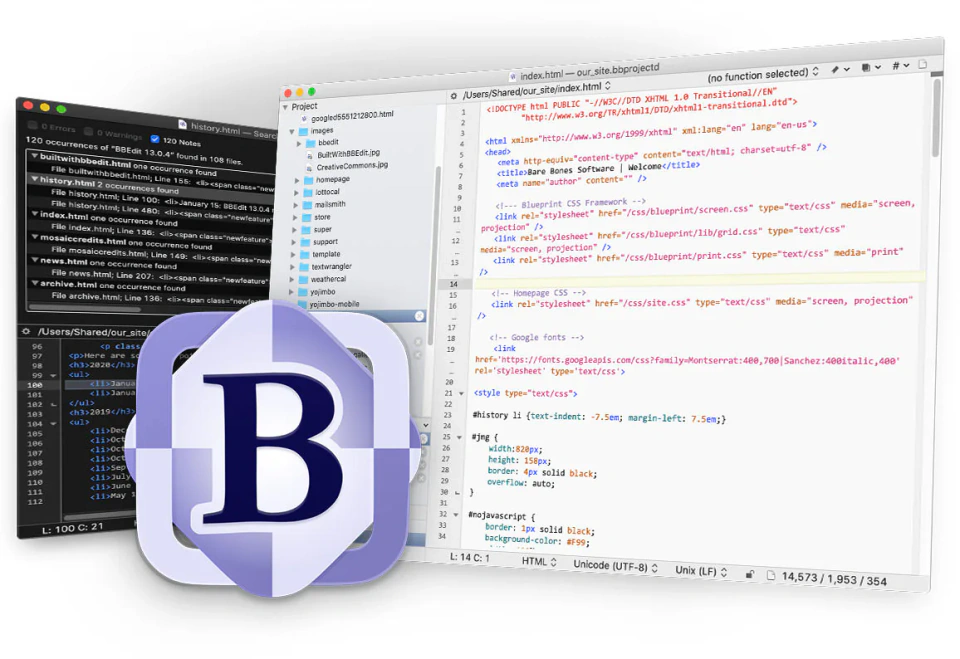
Official promotional image combining interface screenshots: an HTML project appears beside multi-file search results. This image shows an older interface and does not document every feature of the current release.
- Good fit: folder-wide search, text transformations, and scriptable editing.
- Check first: Free Mode feature availability after the evaluation ends.
TextMate: snippets, commands, and bundles
TextMate is an open-source Mac editor whose website lists macOS 10.12 or later. It supports multiple carets, project search with replacement previews, snippets, macros, and commands that can use the underlying Unix environment.
Its bundles organize language support and custom workflows. Consider it when you want reusable snippets or command-driven editing and are comfortable learning that system. Bundles are a different extension model from Notepad++ plugins, so any existing automation needs a migration check.
- Good fit: custom commands, snippets, and multiple-caret editing.
- Check first: how your existing macros or plugins translate to bundles and commands.
VS Code: coding projects and extensions
VS Code is a free code editor with language extensions, debugging, an integrated terminal, and source-control tools. It is a practical starting point when editing text is part of developing and running a project.
For a few notes or a list cleanup, you may prefer an interface focused on those tasks. That is a workflow preference, not a measured claim that VS Code is slow. Microsoft supports macOS versions that receive Apple security updates, typically the current release and the two previous releases. Check extension requirements as well as the editor itself.
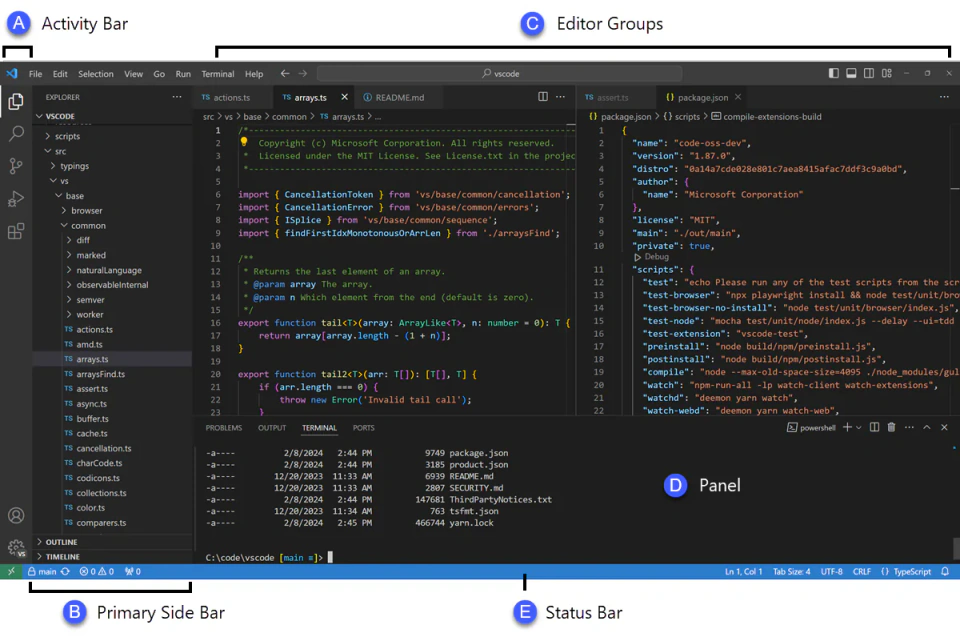
Official documentation screenshot: a file sidebar, split editor groups, and an integrated terminal illustrate a project-oriented layout. This example is shown on Windows; macOS window controls and shortcuts differ.
- Good fit: projects that need debugging, terminal commands, and language tooling.
- Check first: macOS support and the specific extensions you rely on.
Before switching: check plugin and macro compatibility
notePad++++ is an independent Mac editor and does not run Windows Notepad++ plugins. The official Notepad++ application is for Windows; Nextpad++ is an independent community port, while NotepadNext is a separate reimplementation. A similar name does not make them the same product.
Write down the plugins, macros and scripts you actually use. For each one, look for the needed built-in capability, a supported port or extension, or a different way to perform the task. Similar feature names can still mean different shortcuts, regular-expression rules or script APIs.
If one Windows-only plugin is essential and has no suitable replacement, keeping the Windows application in a compatible Windows environment may be more practical than forcing a migration. Test that particular plugin and environment separately; installing a Mac editor does not transfer its compatibility automatically.
Check 1: make the same column edit
Use a fixed-width text file with the same prefix on several lines. Select the prefix as a rectangle, replace it, and confirm that the remaining text has not shifted or disappeared. This tells you more about your everyday editing comfort than a checkbox labeled “column editing.”
In notePad++++, hold Option and drag to select a rectangular block, or enable Column Mode from the toolbar. Multiple carets and rectangular selection are related but different: multiple carets can sit at different positions, while a rectangle selects the same character columns. For comma-separated data with quoted fields or varying widths, rectangular editing is not a substitute for parsing CSV.
Check 2: review a replacement across files
Copy a small folder, then search for an exact token such as customer_id. Put a few matches in a file you want included and a few in an archive file you want excluded. Replace only the intended matches and inspect every changed file.
Look for controls that help you choose the folder, restrict file types, distinguish literal text from regex, and inspect results before writing changes. Then try the recovery procedure on the copied folder. Count correct changes and unintended changes; do not judge a replacement only by how quickly the progress indicator finishes.
Check 3: clean a list and verify the expected output
Download the small sample linked below and open a copy in two candidate editors. Trim leading and trailing spaces on each line, remove blank lines, remove exact duplicate lines, and sort the remaining lowercase entries in ascending order. The expected result is exactly four lines: apple, banana, cherry, and pear.
Because this sample contains only lowercase ASCII words, the result is unambiguous. For real names or multilingual lists, decide whether capitalization, accents, and locale-sensitive sorting should matter before deduplicating. A visually tidy result can still have lost meaningful entries.
An editor with scripts or reusable cleanup steps may suit recurring work; manual operations may be enough for an occasional list. Compare whether you can reproduce the same output and understand each change, rather than assuming automation is always necessary.
Also check Markdown and older file encodings
If you write Markdown, compare the rendered document as well as its source. The real notePad++++ screenshot below shows a checklist, a table, a Mermaid flowchart and a local landscape photo. Source and preview remain visible together; the Markdown guide linked below explains scrolling, precise alignment and image editing.
For older text files, keep an untouched copy and note the original encoding and line endings. Open, edit, save, and reopen a copy, checking non-English characters and the final file format. Use one of your own representative files; the small ASCII cleanup sample above cannot establish encoding compatibility.
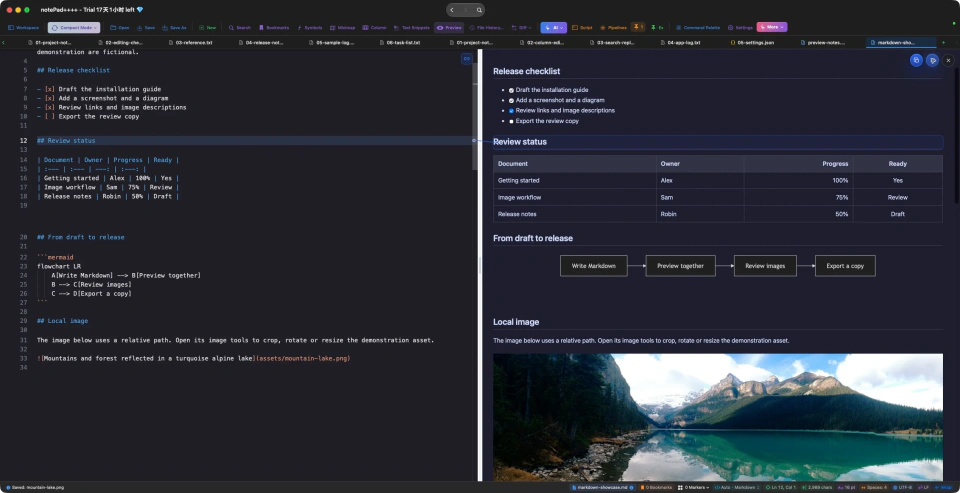
Actual App capture using the existing demonstration document. Syntax highlighting, rendered preview and export compatibility are different things; check the Markdown elements your own files use.
Make the final choice using one real job
Shortlist two editors, repeat the same job on copies, and record the versions, settings, output, and any recovery steps. If you want to compare performance, use the same Mac and file, repeat the operation, and report the conditions along with the measurement.
Choose the editor that completes your main task accurately with a workflow you can maintain. Keep another tool available if it handles a different task better. The right choice for a plugin-dependent programmer can be different from the right choice for someone cleaning keyword lists or drafting Markdown.
Official product pages and documentation were reviewed on November 9, 2026. The notePad++++ examples reuse real App captures with fictional sample files. Third-party images are credited to their publishers and may show older versions or a different operating system. We have not benchmarked all eight editors or verified every extension; check the linked sources for current releases, prices and requirements.
FAQ
What is the best Notepad++ alternative for Mac?
For native Mac editing with tabs, Column Mode, multi-keyword search and reusable text scripts, try notePad++++. CotEditor is a free option for plain text, Nextpad++ emphasizes familiar editing and ported plugins, BBEdit handles multi-file text work, and VS Code suits coding projects. Choose by your main task rather than a universal ranking.
What is the Notepad equivalent for Mac?
For basic Windows Notepad-style notes, TextEdit is built into macOS; switch it to plain-text mode. For Notepad++-style tasks such as tabs, column selection, regex and scripts, a dedicated editor such as notePad++++ gives you a different set of tools. Basic Notepad and Notepad++ are different applications.
Is there an official Notepad++ for Mac?
The official Notepad++ project distributes the Windows application. Nextpad++ is an independent community port and NotepadNext is a separate reimplementation; neither should be confused with an official macOS release from the original project.
Which alternatives are free?
Nextpad++, NotepadNext, CotEditor, TextMate, and VS Code provide free options. BBEdit has a Free Mode after its evaluation. Sublime Text is free to evaluate but requires a license for continued use. Check each project’s current terms and which features are included.
Can I reuse my Windows Notepad++ plugins?
Not automatically. Nextpad++ maintains a catalog of ported plugins, so check the exact plugin and version. The other editors use their own extension or scripting systems. A Windows plugin binary is not made compatible simply by opening a similar-looking Mac editor.
Is Nextpad++ the same as NotepadNext?
No. Nextpad++ describes itself as a community port of the Notepad++ code. NotepadNext is a separate cross-platform reimplementation. They have different maintainers, releases, and compatibility considerations.
Do I need an alternative if TextEdit already opens my files?
Only if your tasks require more. TextEdit can be enough for basic plain text. Consider a dedicated editor for rectangular selections, regex operations, reviewing replacements across files, or reusable text transformations.
Which editor should I choose for an older Mac?
Check your macOS version before downloading. The pages reviewed here list macOS 11+ for Nextpad++, 14+ for BBEdit 16, and 10.12+ for TextMate. CotEditor maintains an archive for older systems. These requirements can change, so use the linked official download information for the release you intend to install.
Can I run the original Windows Notepad++ on a Mac?
You can evaluate a Windows environment or compatibility software when you need the original application. Whether a specific build or plugin works depends on that setup; test it rather than assuming every Windows feature will transfer.
Try the Mac workflows shown in notePad++++
Open a copy of your TXT file, select a column, or search for several keywords. Add live Markdown preview or a reusable script when the task needs it. Some advanced tools require Pro access or an eligible trial; check current App Store terms.
Download notePad++++ on the App StoreSee the App Store listing for current pricing and macOS requirements.