
Your Notepad++ tasks, in a native Mac app
Does Notepad++ Work on Mac? Meet notePad++++
Run notePad++++ natively on your Mac for the Notepad++ tasks you use every day: multiple tabs, Column Mode, regex find and replace, and folder search. Download it from the Mac App Store and start editing—no Wine or Windows setup needed.
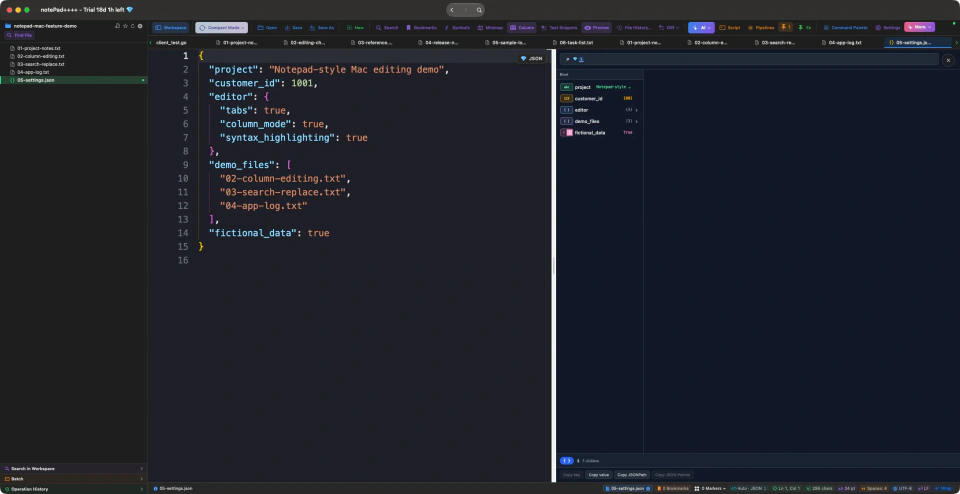
Use notePad++++ natively on your Mac
notePad++++ is a native Mac alternative for everyday Notepad++ editing. Keep local text files in tabs, change aligned columns, replace text patterns, and search a workspace folder in one macOS app. You do not need to install Windows or configure Wine for these tasks.
Download notePad++++ on the Mac App Store and try it with your TXT, code, log, or configuration files. See the listing for current macOS requirements, trial details, and optional Pro purchases.
The original Notepad++ is a Windows application; notePad++++ is our independent Mac editor, not an official Notepad++ release, and it does not run Windows Notepad++ plugins. If you specifically need the original program or a particular plugin, the Wine, virtual-machine, and community-port options are covered below. See the official Notepad++ project for its supported systems.
Familiar Notepad++ features, running natively on Mac
You do not need a Windows installation just to work with several text files, change aligned columns, or replace a pattern. Here is how those jobs look in notePad++++. All three images are real App screenshots using fictional demonstration files, reused from our Notepad++-style features guide.
Multiple tabs and readable code
The screenshot at the top of this page shows a folder of demonstration files in the sidebar and multiple documents open as tabs. The selected JSON file has syntax highlighting in the editor and a separate tree preview. That lets you keep notes, logs, and configuration files together while switching between them.
For this use case, try opening the same .txt or .json files you already work with. Check file encoding and line endings when moving files between Windows and Mac. Your documents can move independently of the editor; plugin settings and shortcuts need separate checking.
Column Mode for aligned text
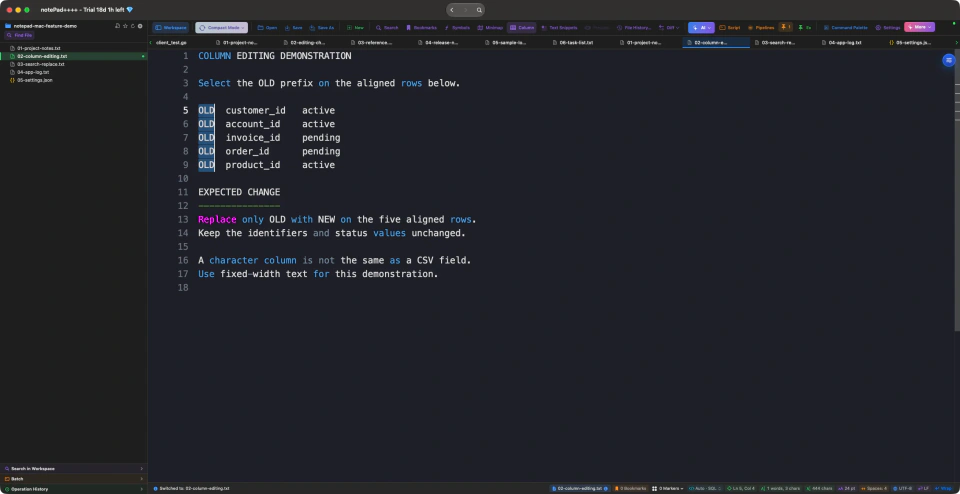
Source: our notePad++++ demonstration workspace. The highlighted rectangle selects only the OLD prefix on five rows.
For fixed-width lists, Column Mode lets you select a vertical block instead of whole lines. In this example, the task is to replace those five OLD prefixes with NEW, keeping the identifiers and status values beside them. It is useful for aligned text; a character column is not automatically a CSV field. See the Column Mode guide for more detail.
Regex Find & Replace for repeated patterns
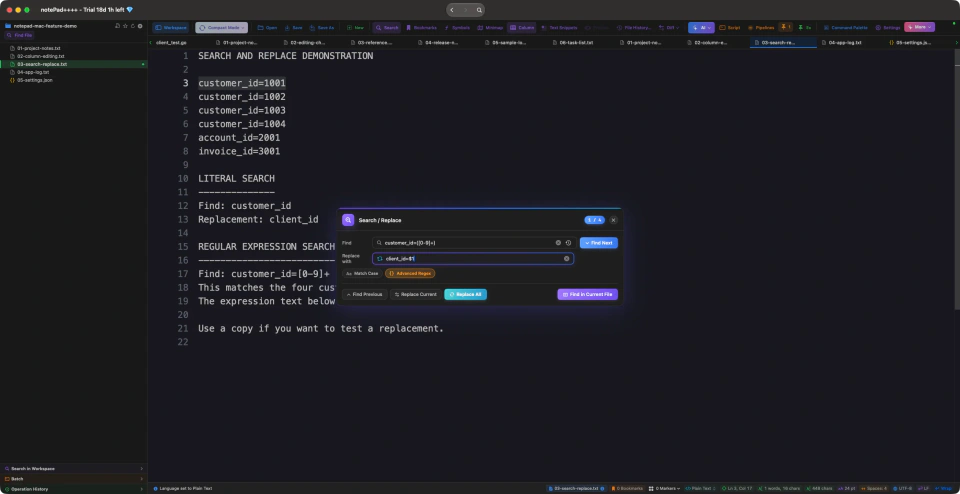
Source: our notePad++++ demonstration workspace. The Find field contains customer_id=([0-9]+) and the replacement is client_id=$1.
This regular expression captures the number after customer_id=. Replacing a match changes customer_id=1001 into client_id=1001, retaining the number. The account_id and invoice_id lines do not match. Try a copy of your file first, especially when moving expressions between editors, because pattern and replacement syntax can differ.
These examples cover familiar editing jobs without claiming that the two applications are interchangeable. For more of our App's features, including folder search, see the full Mac feature walkthrough.
Four ways to get the workflow on macOS
| Your priority | Option to consider | What to check first |
|---|---|---|
| Tabs, column editing, and regex replacement in a Mac app | A separate Mac editor such as notePad++++ | Try your usual files and editing tasks; Windows plugins do not transfer |
| The original Windows application without installing Windows | Wine or CrossOver, a compatibility layer | Reports for your macOS version, Mac chip, app version, and required plugins |
| The original application alongside other Windows software | A Windows virtual machine | Supported Windows version, processor architecture, licensing, memory, and disk space |
| A community-maintained Mac port of the Notepad++ code | Nextpad++ | Current Mac requirements and the availability of each plugin you need |
These are different choices, not four official Mac editions. For a wider list of editors, see our Notepad++ alternatives for Mac comparison.
If you need the original Windows application
Wine or CrossOver: check your exact setup
A compatibility layer translates Windows system calls so a Windows application can run without a full Windows installation. CrossOver is one packaged option built around this approach. Its compatibility database contains version-specific reports from users and staff.
Before choosing this route, check your Mac chip and macOS version, then test the Notepad++ version and plugin you actually need. An editor opening successfully does not establish that every plugin or file operation works. Start with a copy of a representative file and test opening, editing, saving, and the plugin's specific command.
A Windows virtual machine: useful if you already use Windows
A virtual machine runs a Windows environment on your Mac. This can make sense if you already use Windows for other applications. It also means maintaining Windows and allocating memory and disk space, with licensing requirements to check separately.
Apple silicon needs particular care: Parallels lists supported guest operating systems, including Windows 11 Arm for M-series Macs. Windows app emulation and plugin architecture can still affect compatibility. Verify your required combination rather than assuming it behaves exactly like an Intel Windows PC.
What about Nextpad++, the community Mac port?
Nextpad++ is a separately maintained macOS port of the Notepad++ code, rather than a release from the official Notepad++ project. It is an option if you specifically want that code base and interface on a Mac.
The practical check is plugins. Its Mac plugin directory lists ported plugins; a Windows plugin's .dll cannot simply be treated as a native Mac plugin. Look up each essential plugin before choosing it. Our Nextpad++ and NotepadNext comparison explains the separate projects.
A quick checklist before you switch
- List your essential jobs. Opening notes and editing columns is a different requirement from running a particular Windows plugin.
- Test representative files. Use copies of a real text file, a configuration file, and any file with non-English characters. Check encoding, line endings, search, and the saved result.
- Check the features you depend on. Test your exact regex and any plugin command. Do not assume that saved settings or keyboard shortcuts transfer automatically.
- Choose the smallest setup that covers those jobs. A Mac editor avoids a separate Windows environment; an existing Windows setup may be appropriate when a Windows-only tool is essential.
Try the Mac editing workflow
If your list is mostly tabs, column editing, and search and replacement, start with those tasks in notePad++++. The App Store listing shows the current compatibility, trial, and purchase details.
Download notePad++++ on the Mac App Store
Want to check a specific file format first? See our JSON viewer and editor guide or SQL file viewer with hover previews.
FAQ
Is there an official Notepad++ for Mac?
The official Notepad++ project does not publish a macOS version. For native Mac editing, notePad++++ provides tabs, Column Mode, regex replacement, and workspace search without installing Windows. It is an independent app and does not run Windows Notepad++ plugins.
Is Nextpad++ the same as Notepad++?
Nextpad++ is a separately maintained community port for macOS. It is not an official Notepad++ release. Check its Mac plugin directory rather than assuming that every Windows plugin is available.
Will Windows plugins work in a Mac port?
Not automatically. Plugins written for the Windows version have to be ported, so a plugin you rely on may not be available. Check the plugins you need before you switch.
What if I only need Notepad++ features like tabs, Column Mode, and regex search?
notePad++++ provides those workflows in a separate Mac app. This guide shows its real multi-tab, Column Mode, and Regex Find & Replace screens. It does not run Notepad++ plugins.
Can I open the Notepad++ .exe installer directly on a Mac?
macOS does not install a Windows .exe as a Mac app. To use that Windows program, you need a suitable compatibility layer or a Windows environment. For a native Mac editor, use its Mac installer or App Store listing.
Does an Apple silicon Mac change the setup?
Yes. Check the compatibility tool's support for your Mac and macOS version. A Windows virtual machine on Apple silicon commonly uses Windows 11 Arm; the editor and any required plugins must work in that environment too.
Notepad++ is a trademark of its respective owner. notePad++++ is an independent macOS text editor and is not affiliated with, endorsed by, or approved by the official Notepad++ project.