
Choose by your editing task
Nextpad++ vs NotepadNext vs notePad++++ for Mac
Nextpad++ brings the Notepad++ codebase to Mac; NotepadNext recreates a familiar editor across platforms; notePad++++ offers a separate Mac workflow for text cleanup and file previews. Compare their interfaces, plugin limits and everyday editing before choosing.
Nextpad++ vs NotepadNext: the short answer
Start with Nextpad++ if you want a port of the Notepad++ codebase and its available Mac plugins. Consider NotepadNext if you want an open-source reimplementation across operating systems. Try notePad++++ if your main tasks are editing text, cleaning up lists and inspecting structured files on a Mac.
These are separate projects. The original Notepad++ repository describes a Windows application; none of these three is the official macOS edition from that team.
This comparison is published by the maker of notePad++++. Our examples use real App screenshots and demonstration files. Competitor details come from their project documentation, with image sources identified below. We have not performed a three-app speed or reliability benchmark.
Download notePad++++ for Mac on the App Store. Check the listing for current pricing, requirements and Pro features.
Compare the differences that affect your work
| Decision | Nextpad++ | NotepadNext | notePad++++ |
|---|---|---|---|
| Project approach | Independent port of Notepad++ | Qt-based reimplementation | Independent Mac app with its own interface |
| Platforms | Mac and Linux | Windows, Linux and Mac | Mac |
| Price and source | Free, GPL; public source | Free, GPL-3.0; public source | App Store; some advanced tools require Pro |
| Mac installation | Official project DMG | GitHub release DMG or documented Homebrew route | Mac App Store |
| Windows Notepad++ plugins | Need individual Mac ports; check its catalog | Windows plugin compatibility not established by this guide | Does not load Notepad++ plugins |
| Main reason to evaluate | Familiar Notepad++ workflow and ported plugins | Similar editing environment across systems | Text cleanup, workspace tools and built-in file previews |
| Check before switching | Availability of your exact plugin | Release notes and the README's important-work warning | Whether its own tools replace your current tasks |
The table compares project scope and documented options. A blank or unverified compatibility claim is not proof that a feature is absent.
Nextpad++: a port for a familiar Notepad++ workflow
The Nextpad++ project lists regex search, find in files, split views and macro recording. Its About page describes an independent community port, with a Mac build for both Intel and Apple silicon. This makes it a candidate when you want to retain familiar editing habits.
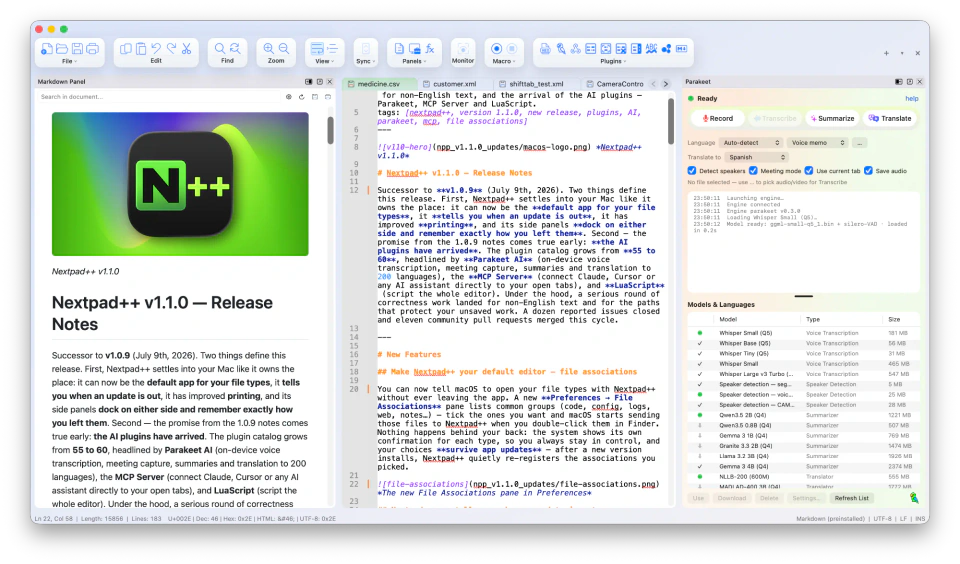
Source: Nextpad++ official About page. The Mac screenshot shows document tabs, Markdown source and preview, and the Parakeet plugin panel.
The key migration check: your plugins
According to the Nextpad++ plugin documentation, Windows .dll plugins cannot be loaded directly on Mac. A plugin needs a Mac port, built as a .dylib file. Check the catalog for the specific plugin and platform you need, then test its output on a copy of your files. A familiar plugin name does not establish identical behavior.
Best fit: readers who prioritize a ported Notepad++ workflow and an available plugin. Download: Nextpad++ official Mac download page.
NotepadNext on Mac: a separate cross-platform project
NotepadNext recreates a Notepad++-style editor with Qt and provides packages for Windows, Linux and macOS. It is a separate GPL-3.0 project. Its README links Mac disk images and Homebrew installation instructions.
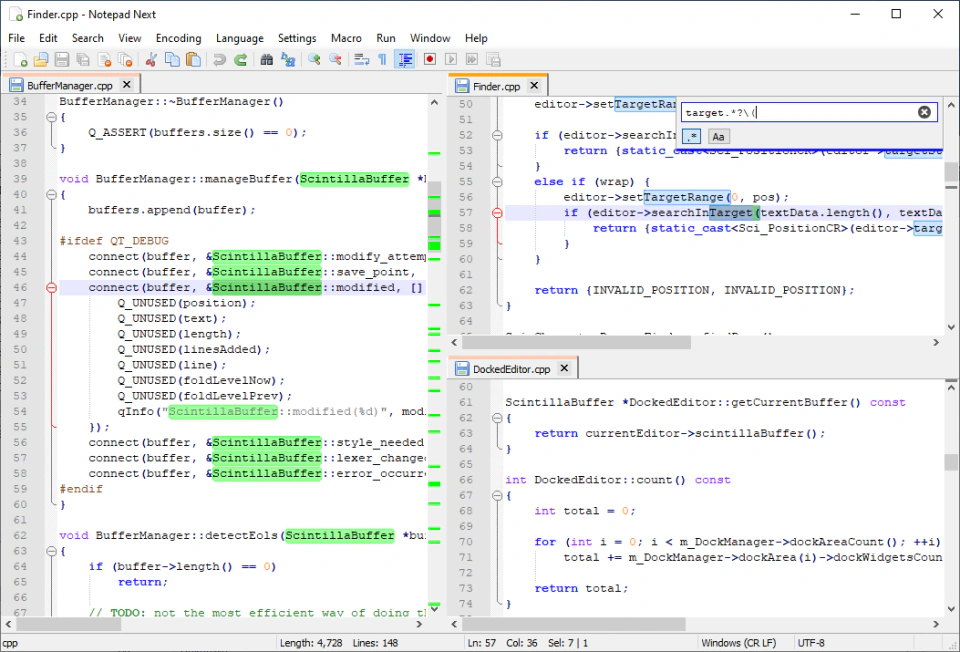
Source: screenshot.png in the official NotepadNext repository. This is the project's Windows screenshot, included to illustrate its layout; it is not a Mac test capture.

The README warns against relying on it for critically important work and acknowledges incomplete implementations. This is the project's own qualification, not a comparative reliability test. Try your actual editing and saving routine on copies before adopting it.
Best fit: readers evaluating an open-source editor across operating systems. Download: NotepadNext GitHub releases.
notePad++++: do the familiar tasks with Mac tools
notePad++++ uses its own interface and tools. It does not load Notepad++ plugins, and this guide does not promise compatibility with Notepad++ macros or configuration files. Its value is in completing the underlying task: keep related files together, change repeated text, inspect data and repeat cleanup steps.
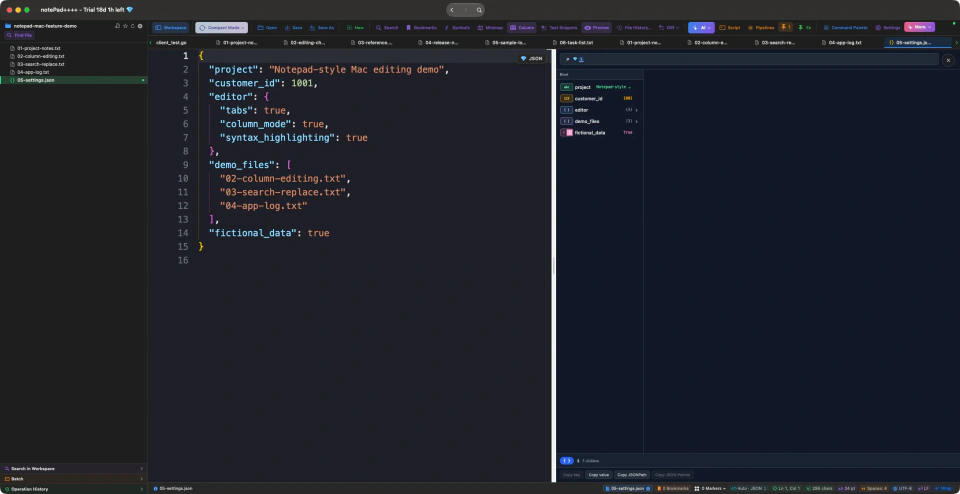
The real screenshot at the top shows document tabs, a workspace and a JSON structure panel. The examples below show what to try after opening a file.
1. Edit an aligned block of text with Column Mode
When several lines begin with the same fixed-width prefix, select that prefix as a rectangle. In the example, the five OLD prefixes are selected while the identifiers and status values remain outside the selection. Replace the selection with NEW, then check all five rows.
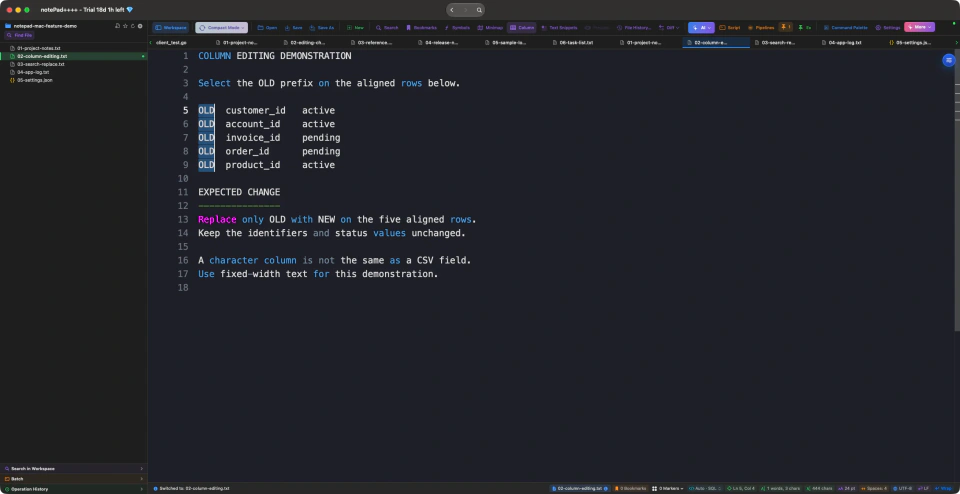
Source: our real Mac App capture using a demonstration TXT file. This shows the selection before replacement. Hold Option and drag, or enable Column Mode from the toolbar. Character columns are not the same as fields in a CSV file.
2. Rename a repeated pattern without changing its numbers
Regex Find & Replace lets you match a pattern rather than one literal word. Search for customer_id=([0-9]+) and replace it with client_id=$1. The captured number is retained: customer_id=1001 should become client_id=1001.
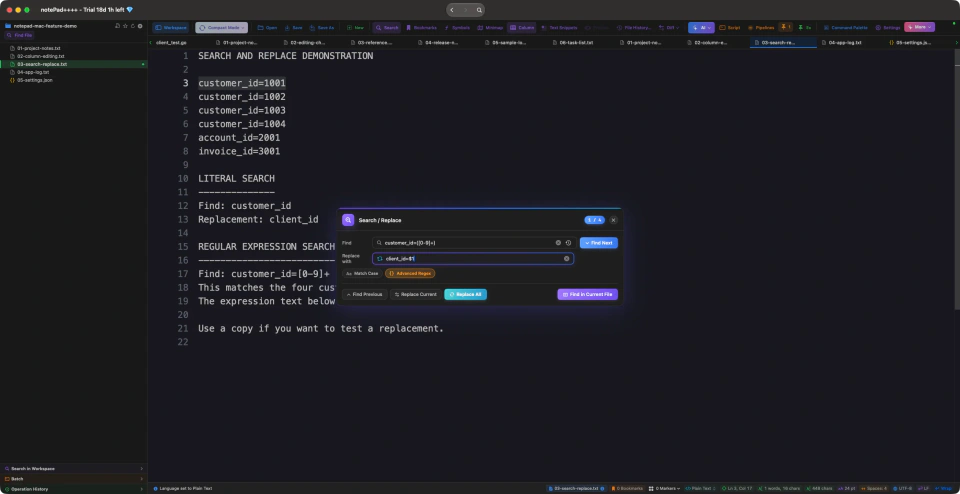
Source: our real Mac App capture using fictional log entries. Four matches are shown before applying the replacement.
Try the same input in each candidate editor. Confirm the match count, replacement result and selected search scope before saving. See the regex find-and-replace guide for more examples.
3. Repeat cleanup with the App's own pipelines
A pipeline combines text-processing steps into a repeatable operation. For example, a list-cleanup task can remove empty lines, remove duplicates and sort the remaining entries. Built-in starting points include word-list cleanup and URL-list cleanup. The script demo below shows a single URL-extraction step with its result and differences.
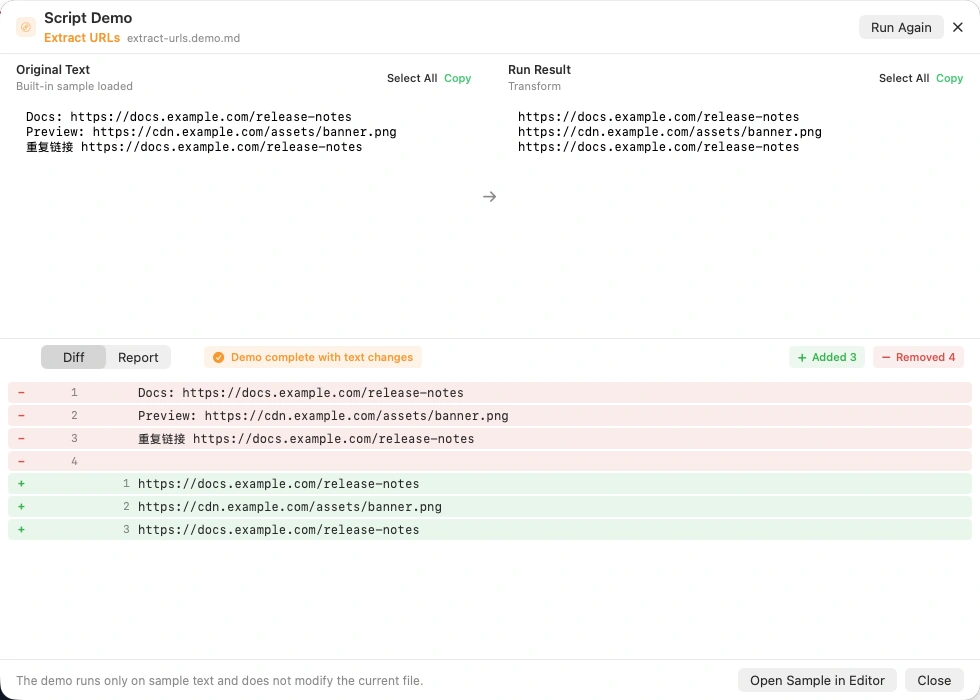
Source: our real Mac App capture. The built-in Extract URLs demo shows the original sample text, the extracted links and a line-by-line preview of the changes.
These are the App's own tools, not imported Notepad++ macros. For batch changes, review the proposed differences before applying them. Read the batch text-processing guide for that workflow.
4. Inspect structured files alongside the text
For configuration and data files, start with JSON viewing, editing and validation. For SQL files, the App can show a small statement preview when you hover over supported SQL; the SQL file viewer guide includes actual preview captures. Markdown and HTML previews are also available for reviewing rendered content.
These examples are reasons to evaluate notePad++++ for your files, not claims that other editors cannot perform similar tasks. Some advanced functions require Pro; check the App Store listing.
Choose with a small, repeatable file test
Use the same copies in each editor instead of comparing feature counts alone:
- Open your files: a TXT note, a log and a configuration file. Confirm accents, line endings and indentation survive a save and reopen.
- Make one edit: replace a repeated prefix or rename a pattern while preserving its numbers. Compare the entire resulting file.
- Check one dependency: your must-have plugin, macro or preview. Confirm the actual Mac version supports the task.
- Repeat the routine: close and reopen the files, then repeat the cleanup. Decide whether the steps feel clear enough for everyday use.
Choose Nextpad++ when the port and its available plugins meet your existing routine. Consider NotepadNext for cross-platform editing after reviewing its project qualifications. Choose notePad++++ when its Mac workspace, text tools and built-in previews suit your tasks.
Download notePad++++ on the Mac App Store, or explore the full Mac feature guide before installing.
Project documentation and image sources checked October 15, 2026. Interfaces, supported plugins and pricing can change; follow the official links above for the version you plan to use.
FAQ
Is Nextpad++ the official Notepad++ for Mac?
No. Nextpad++ describes itself as an independent community port. NotepadNext is a separate reimplementation, and notePad++++ is an independent Mac app. The original Notepad++ project distributes a Windows application.
Which one supports Notepad++ plugins?
Nextpad++ has a catalog of plugins ported to Mac. Windows DLL plugin files cannot be loaded directly on macOS. Do not assume NotepadNext supports your Windows plugins; notePad++++ does not load Notepad++ plugins.
How do I install NotepadNext on Mac?
Use the Mac disk image linked from the project's GitHub releases, or follow its README's Homebrew instructions. Read the release notes for the package you install.
Are they free?
Nextpad++ and NotepadNext are released under the GPL and are free to download. notePad++++ is distributed through the Mac App Store; check the listing for current pricing and which advanced features are part of Pro.
Does notePad++++ import Notepad++ macros?
This guide does not claim macro or settings-file compatibility. notePad++++ offers its own text tools and pipelines for repeatable cleanup; evaluate those separately from an existing Notepad++ macro.
Which one is fastest or uses the least memory?
We have not run a controlled performance comparison of these three apps. The screenshots demonstrate interfaces and tasks, not speed, memory use or reliability.
Notepad++ is a trademark of its respective owner. notePad++++ is an independent macOS text editor and is not affiliated with, endorsed by, or approved by the official Notepad++ project.