
Familiar text editing tasks · Actual Mac app screenshots
Notepad++ for Mac: Familiar Features in notePad++++
Want the everyday features you use in Notepad++ on a Mac? notePad++++ is an independent macOS editor with document tabs, syntax highlighting, Column Mode, Regex Find & Replace, and Workspace Search. This guide shows those workflows in the actual app, using small files you can inspect and try yourself.
Written by the developer of notePad++++. All app images below are actual screenshots captured on October 14, 2026, with a fictional demonstration workspace. We tried the five-row column edit and four-record regex replacement described below. The Notepad++ feature references link to its official project and manual. This guide is not a speed or memory benchmark, and notePad++++ is not an official Notepad++ Mac release.
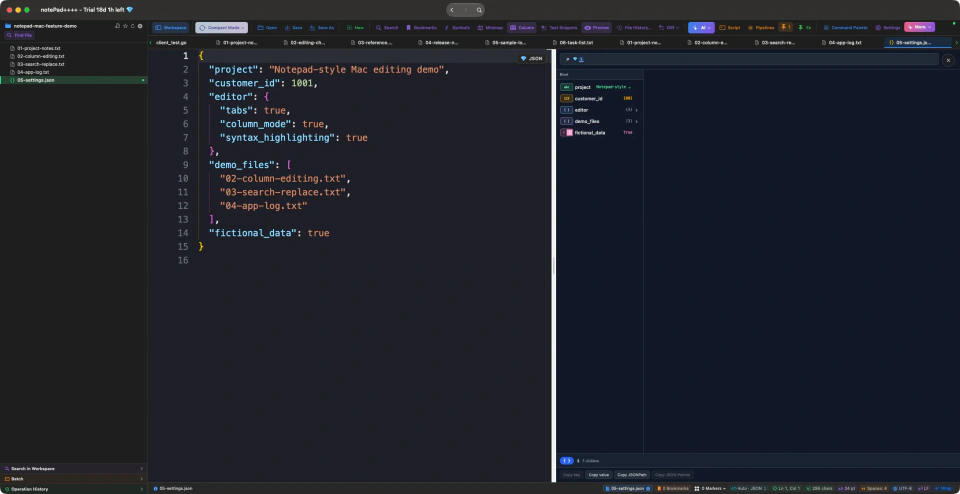
Actual notePad++++ screenshot: related files stay in tabs, JSON keys and values use syntax colors, and an optional tree preview appears beside the source. The preview is an additional notePad++++ tool.
On this page
Is there an official Notepad++ for Mac?
The original Notepad++ project distributes a Windows application. notePad++++ is a separate macOS app, not a Mac release from the Notepad++ project. Its purpose is to cover familiar text editing jobs using a Mac interface.
If you depend on the original Windows program or a particular Notepad++ plugin, check that requirement before switching. If your everyday tasks are opening several files, editing aligned text, searching with patterns, and finding a field across a folder, the examples below give you concrete things to evaluate.
Bring the editing workflow, then check the differences
The Notepad++ manual documents document tabs, column selections, search and replacement, and finding text in files. The useful comparison is how you complete those tasks in another editor, rather than whether every menu has the same name.
The table gives you a small check for each task. Shortcuts, search syntax, extension systems, and available features can differ; use your own representative files after trying the demonstration workspace.
Familiar Notepad++ tasks in notePad++++
| Editing task | Mac workflow | A small check |
|---|---|---|
| Document tabs | Open related files in tabs and navigate the workspace. | Switch between the notes, log, and JSON example. |
| Syntax highlighting | Check the language selector and color-coded source. | Inspect JSON strings, numbers, booleans, and nesting. |
| Column editing | Use Column Mode or Option-drag for a rectangle. | Replace five aligned OLD prefixes with NEW. |
| Pattern replacement | Enable Advanced Regex in Search / Replace. | Rename customer_id while preserving four numbers. |
| Find in files | Search in Workspace with scope and file filters. | Find customer_id across the five example files. |
| Repeated text operations | Use notePad++++ Script Pipelines or Batch Processing. | Plan your own steps; Windows macros and plugins do not import. |
Document tabs: keep notes, logs, and settings together
The opening screenshot shows five demonstration files in a workspace: notes, aligned text, search examples, a log, and JSON settings. Several documents are open in tabs above the editor, so you can switch files while keeping the folder list available.
Try opening the notes, log, and settings file in separate tabs. Switch between them and confirm you can tell which file is active before saving. When many tabs are open, use the workspace list to locate the next file instead of arranging separate windows.
Syntax highlighting: read the structure of a file
In the JSON file shown above, property names, strings, numbers, and booleans have different colors. Line numbers and indentation keep the nested editor settings easy to follow. This is the sort of structured-file reading that many Notepad++ users want from a Mac editor.
Use the language selector to check the detected file type or choose a language explicitly. Plain TXT notes can stay in Plain Text mode, while a JSON configuration benefits from JSON highlighting. The optional JSON tree preview shown beside the source offers another way to inspect nested values; syntax colors alone do not establish that a file is valid.
Column Mode: change the same columns on several lines
Column editing selects the same character positions across multiple rows. In notePad++++, enable Column Mode from the toolbar, then drag across the aligned text. You can also use Option-drag for a rectangular selection. In the screenshot, only the three-character OLD prefix is selected on five rows.
We tried typing NEW into this selection. All five prefixes changed to NEW, while the identifier and status text stayed in place. The input and resulting file are linked below so you can reproduce this small operation. Use aligned, fixed-width text for the example; a character column is not a parsed CSV field.
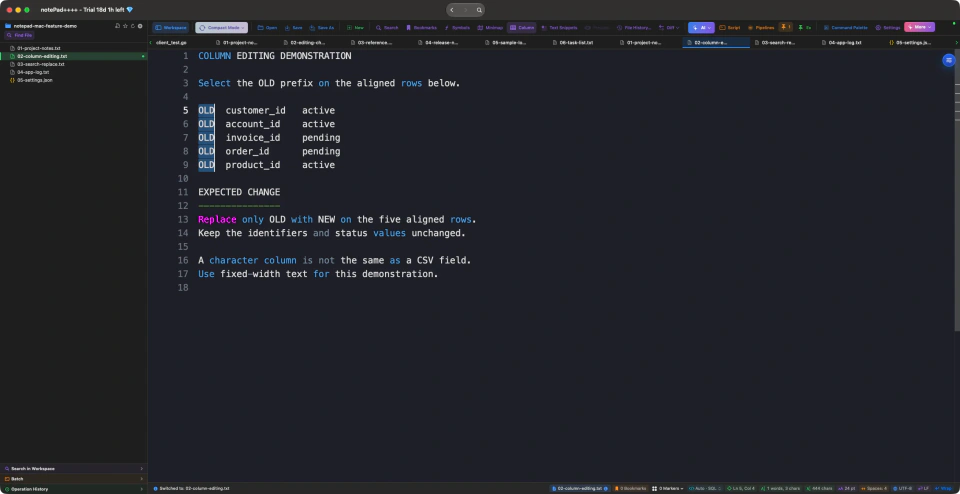
Actual rectangular selection: OLD is selected on five rows, while customer_id, account_id, and the status values remain outside the selection.
Regex Find & Replace: preserve the part you need
Open Search / Replace, enable Advanced Regex, and search for customer_id=([0-9]+) in the sample file. The parentheses capture the number. Enter client_id=$1 as the replacement: $1 puts the captured number back into the output.
The screenshot shows four matches before replacement. In this demonstration, Replace All changed customer_id=1001 through customer_id=1004 into client_id=1001 through client_id=1004. The account_id and invoice_id rows stayed unchanged. Check the output when migrating a pattern from Notepad++; regular-expression behavior and replacement conventions can differ between editors.
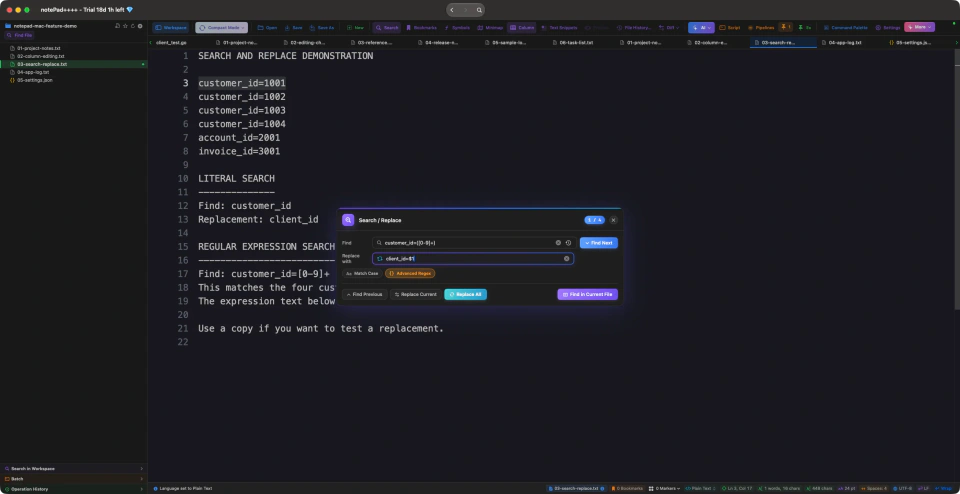
Actual search panel before applying the change: four records match the expression, and the replacement preserves each captured number.
Find in files: search a workspace folder
Open the demonstration folder as a workspace, expand Search in Workspace, and enter customer_id. This searches the selected folder instead of only the document you are currently editing. The sidebar lets you check the folder scope, file types, excluded directory names, and optional path or filename filters.
In our five-file sample, the search reported 14 matching lines across five files. The screenshot shows the search controls beside the fictional log, with the match summary in the status area. Check the scope and filters whenever an expected file is missing from a search. The shown counts belong to this sample; they are not a large-file performance result.
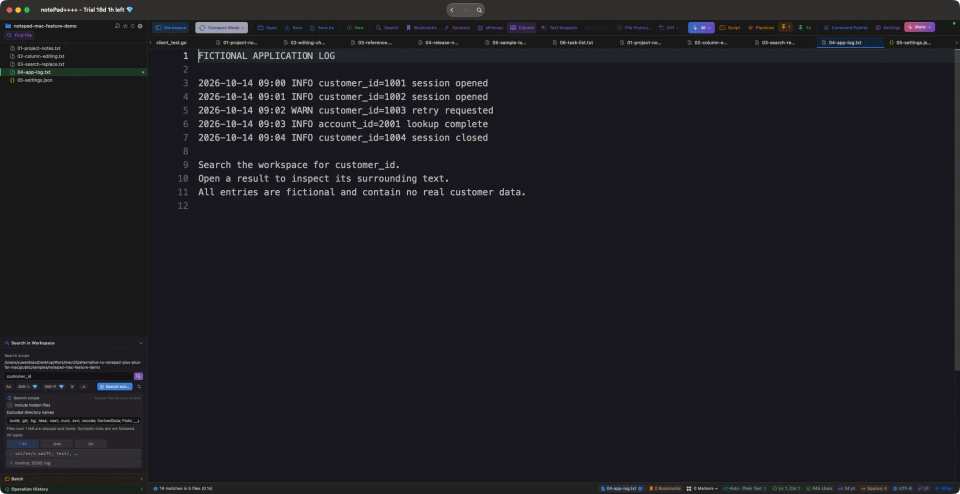
Actual workspace search: the folder and filters are visible at the left, and the status area reports 14 matching lines across the five demonstration files.
Try these text editing tasks on your Mac
Download notePad++++ for tabs, Column Mode, Regex Find & Replace, and Workspace Search. Use the sample files below to check the operations you need. The App Store lists current pricing and macOS requirements.
Download notePad++++ on the App StoreSee the App Store listing for current pricing and macOS requirements.
A small workspace you can reproduce
Save the five input files below into one folder and open it as a workspace in notePad++++. Start with the tabs and JSON file, then try the column edit and regex replacement on copies. The two verified result files linked above make it easy to check your output.
These are fictional samples. Use a copy of your own files for the next check, including any non-English text, file encodings, and search patterns that your work depends on.
Check plugins, macros, and shortcuts before switching
notePad++++ does not run Windows Notepad++ plugins. A familiar feature name does not transfer a plugin or its binary. List the plugins and shortcuts you use, then check whether the required task has a built-in Mac workflow or needs another tool.
For repeated cleanup, notePad++++ offers Script Pipelines and Batch Processing with review and recovery tools. These are its own workflows, not an import path for Notepad++ recorded macros. Markdown Preview and user-configured AI are additional options; the tabs, column selection, and search examples above are the starting point for everyday editing.
FAQ
Is notePad++++ the official Notepad++ for Mac?
No. notePad++++ is an independent macOS editor. The official Notepad++ project distributes its Windows application.
Which familiar Notepad++ features can I use in notePad++++?
The demonstrated tasks are document tabs, syntax highlighting, rectangular column selection, regular-expression find and replace, and searching a workspace folder. Check the screenshots and try the sample files for the tasks you need.
How do I select a column of text on Mac?
Enable Column Mode in the notePad++++ toolbar and drag a rectangle across aligned rows, or use Option-drag. Start with the provided fixed-width sample and check that the remaining text stays unchanged.
Can I use my Windows Notepad++ plugins or recorded macros?
notePad++++ does not run Windows Notepad++ plugins or import recorded Notepad++ macros. Its scripting and pipeline tools use their own workflows; evaluate the task you need to reproduce.
Do the screenshots prove faster editing or lower memory use?
No. They show actual interface states and small editing operations. Launch time, memory use, and large-file behavior require separate measurements on the same Mac with representative files.
Try these text editing tasks on your Mac
Download notePad++++ for tabs, Column Mode, Regex Find & Replace, and Workspace Search. Use the sample files below to check the operations you need. The App Store lists current pricing and macOS requirements.
Download notePad++++ on the App StoreSee the App Store listing for current pricing and macOS requirements.