
A practical interface comparison · Updated October 14, 2026
Lightweight Text Editors for Mac: Less Clutter, Useful Tools
A lightweight text editor for Mac should make everyday files easy to work with: keep related documents in tabs, show the tools you need, and let you step into a quieter view when it is time to read or write. Compare six options, then try the same small TXT workspace yourself.
Written by the developer of notePad++++. The notePad++++ images are actual app screenshots captured with an English TXT demonstration workspace. Other product descriptions use the official sources linked below, checked on October 14, 2026. This guide compares interface and workflow choices; it does not rank these apps by measured launch time, memory use, or CPU usage.
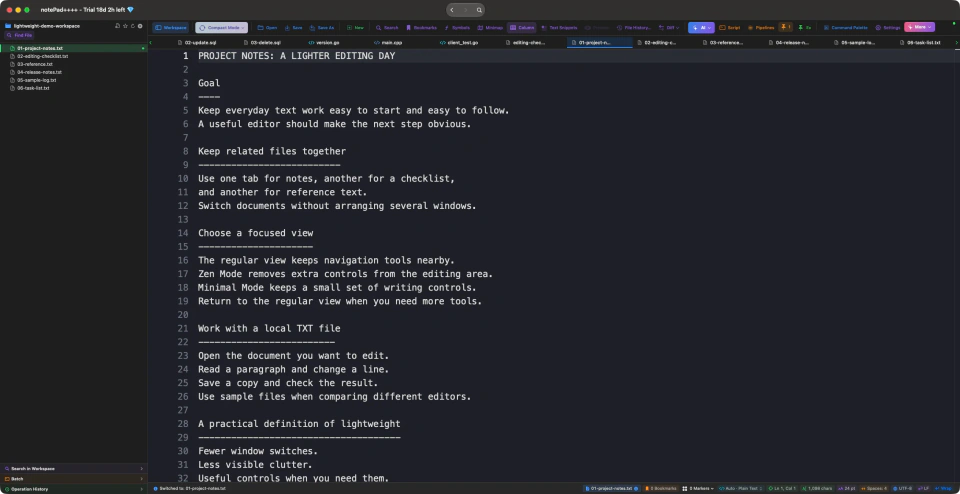
Actual app screenshot: a small TXT workspace, related documents in tabs, and search and batch areas collapsed. More tools can be opened when the task needs them.
On this page
What makes a text editor feel lightweight?
For everyday editing, lightweight can describe how little effort stands between opening a file and doing the next useful thing. A clear document view, familiar save controls, and less window management can matter as much as the length of the feature list.
Resource use is a separate question. A screenshot can show hidden panels or a clean layout, but it cannot establish low memory use, fast launch time, or smooth large-file editing. If those are your priorities, compare the same files on the same Mac and record the versions and conditions.
- Easy to start: open a local file and begin editing.
- Easy to navigate: keep related documents nearby.
- Easy to focus: hide controls you are not using.
- Enough tools: reveal search or other features when needed.
Choose a starting point for your everyday files
For a quick note, start with the editor you already have. For repeated work, ask whether you need plain-text tools, keyboard-driven code navigation, folder-wide changes, or a development environment. The best lightweight editor is the one whose interface and capabilities fit that particular job.
The table below compares those starting points. Try a typical file and check whether the navigation and editing controls fit the way you work.
Six Mac editors for everyday text work
| Editor | Useful starting point | Check before choosing |
|---|---|---|
| notePad++++ | Related local files in tabs; Zen Mode and Minimal Mode; text tools when needed. | Try the focused views with your files; see App Store pricing and requirements. |
| TextEdit | Occasional notes and simple documents using a built-in Mac app. | Use plain-text format when you need a TXT file. |
| CotEditor | A free macOS plain-text editor with syntax and search tools. | Check the supported macOS release and the workflow you need. |
| BBEdit | Multi-file search, text transformations, and scripting. | Check which features remain in Free Mode after evaluation. |
| Sublime Text | Multiple selections, split views, and keyboard-driven code navigation. | Check license terms and required packages. |
| VS Code | Coding projects with extensions, debugging, and terminal tools. | Decide whether you need a development workspace for this task. |
Zen Mode: put the document first
When you are reading a long note or checking the wording of a paragraph, file navigation and editing commands do not always need to stay on screen. In notePad++++, open Compact Mode and choose Zen Mode. The demonstrated view hides the workspace sidebar, tab strip, main toolbar, and status controls while keeping the document and an exit control visible.
Use this view for a focused reading or writing pass, then exit it when you need to switch documents or use other tools. The screenshot below shows the same project-notes TXT file as the opening screenshot, making the visible change easy to compare. The app remains in an ordinary macOS window.
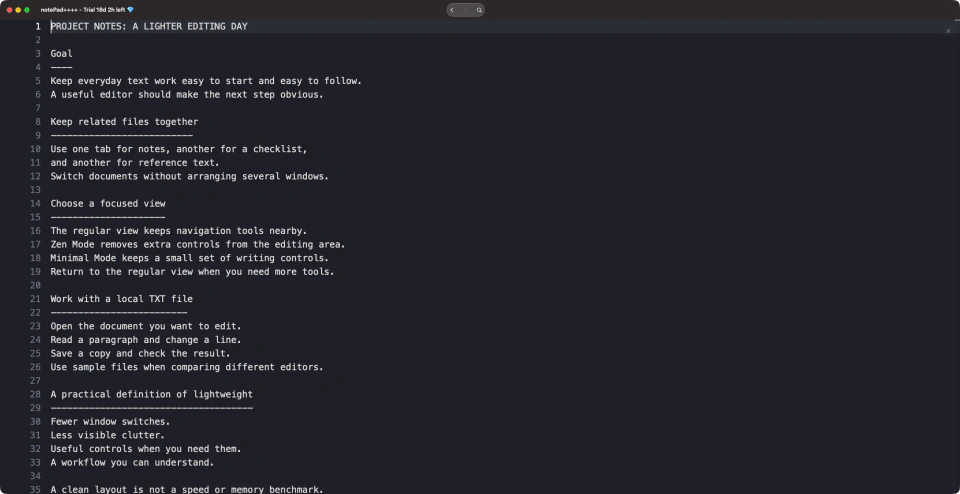
Actual screenshot of the same TXT document in Zen Mode. The document takes priority; the exit control remains available at the upper right.
Minimal Mode: a small set of writing controls
Minimal Mode is another choice in the Compact Mode menu. Like Zen Mode, it removes the regular workspace and editing controls. It also exposes a small strip for background color, text color, text size, and exiting the mode.
Choose it when you want a pared-back writing view but still want to adjust readability without bringing back the full interface. In this demonstration, the same TXT file uses a pale background and 24-point text. The controls change how the plain-text document appears while you read and edit it.
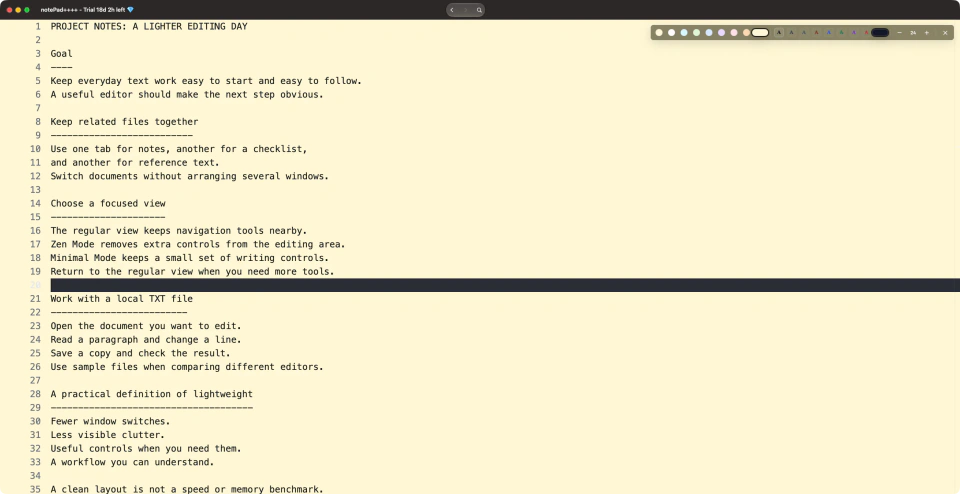
Actual screenshot: Minimal Mode keeps a compact strip for colors and text size. The source remains a plain TXT file.
- Zen Mode: focus on the document with an exit control.
- Minimal Mode: focus on the document with a few readability controls.
Try a quieter text workflow in notePad++++
Keep related TXT files in tabs, enter Zen Mode for focused reading, or use Minimal Mode for a pared-back writing view. Download notePad++++ and try the sample workspace below. Check the App Store for current pricing and requirements.
Download notePad++++ on the App StoreSee the App Store listing for current pricing and macOS requirements.
Keep extra tools available when the task needs them
A quiet editor still needs to handle ordinary work. In the regular notePad++++ view, you can expand workspace search or batch controls when you need them, then collapse those areas afterward. Column Mode, Regex Find & Replace, and Markdown Preview serve different tasks; they do not all have to be part of a simple TXT-writing session.
The useful distinction is between having a capability and showing its controls all the time. Choose a focused mode for reading and writing, and return to the regular view for file navigation or more involved editing.
How the other editors fit a lightweight workflow
TextEdit is a useful starting point for occasional notes because it is included with macOS. It supports plain-text and rich-text documents, so check the document format when your output must be a TXT file. CotEditor focuses on plain text for macOS, with syntax highlighting and regular-expression find and replace.
BBEdit is worth evaluating when your work includes searching or replacing across files and using scripting tools. It offers a 30-day evaluation, followed by Free Mode; check whether your required features remain included. Sublime Text offers multiple selections, tabs, and split views for keyboard-driven text and code editing. Check its license terms for continued use.
VS Code is a sensible choice when editing is part of a coding project that also needs extensions, debugging, or terminal commands. Its documentation includes Zen Mode too. notePad++++ is not unique in offering focused editing; the decision is which combination of navigation, focused views, and text tools fits your work.
Try a six-file TXT workspace before deciding
Download the sample files below into one folder and open that folder as a workspace. Open the project notes, checklist, and reference text in tabs. Switch between them, collapse any panels you are not using, then read the project notes in Zen Mode and Minimal Mode.
Finally, return to the regular view, edit a copy, save it, and reopen it to check the result. Try the same small set of files in another editor. Compare the steps you need, the controls you understand, and whether the interface stays comfortable for your task. These sample documents are fictional and do not measure large-file performance.
FAQ
What is the best lightweight text editor for Mac?
Choose by task. TextEdit can handle occasional notes; CotEditor focuses on Mac plain text; notePad++++ combines tabs, focused views, and text tools; BBEdit suits multi-file work; Sublime Text suits keyboard-driven editing; VS Code suits development projects. This is not a measured performance ranking.
Does a minimal interface mean lower memory use?
No. Hiding interface controls can reduce visible clutter, but it does not establish lower memory or CPU use. Measure those separately with the same Mac, files, app versions, and settings.
How do I enter Zen Mode or Minimal Mode in notePad++++?
Open Compact Mode in the regular toolbar, then choose Zen Mode or Minimal Mode. Use the exit control to return to the regular interface. The screenshots above show both modes in an ordinary window.
Is Zen Mode unique to notePad++++?
No. Other editors offer focused views too, including VS Code. Compare the full workflow: opening files, navigating tabs, choosing a focused view, and returning to the tools you need.
Is notePad++++ an official Notepad++ Mac release?
No. notePad++++ is an independent macOS app. It does not run Windows Notepad++ plugins.
Try a quieter text workflow in notePad++++
Keep related TXT files in tabs, enter Zen Mode for focused reading, or use Minimal Mode for a pared-back writing view. Download notePad++++ and try the sample workspace below. Check the App Store for current pricing and requirements.
Download notePad++++ on the App StoreSee the App Store listing for current pricing and macOS requirements.