
Move the pointer. See what the statement describes.
SQL File Viewer for Mac with Hover Previews
Open a SQL file on Mac, move your pointer over the table name in a supported SQL statement, and a small preview panel appears beside the code. notePad++++ turns table definitions, inserted values, and update or delete instructions into a compact visual view, so you can understand the statement without leaving the editor.
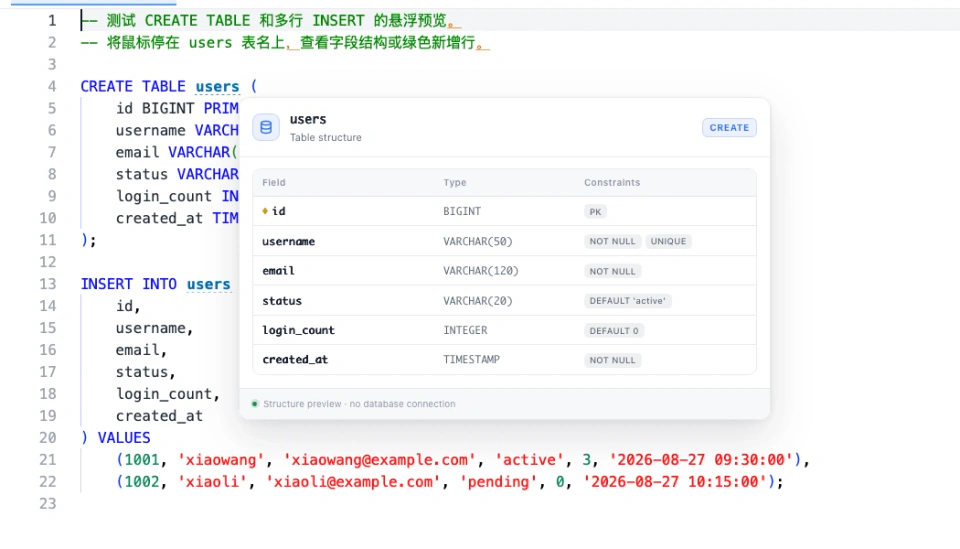
Hover over SQL and see a compact preview
A SQL script can describe a table or a data change across many lines. Instead of reading every column and value together, move your pointer over the marked table name. notePad++++ displays a small panel next to the statement, helping you match the SQL text to its structure or intended change.
The useful part is the connection between the code and its preview: stay in the same editor, inspect the statement, then move on to the next one. You do not need to switch to a separate preview tab or click a Run button.
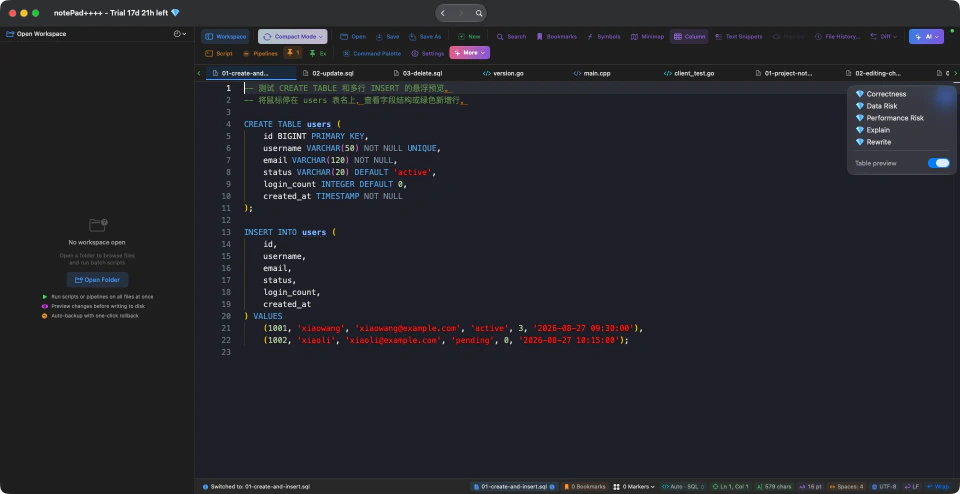
Screenshots in this guide are cropped from the actual notePad++++ Mac window, captured on October 15, 2026, using fictional SQL examples. The opening image shows the real CREATE TABLE hover panel.
Watch: move the pointer to preview SQL
Watch a table definition and sample INSERT values turn into compact hover panels in this 40-second walkthrough. Move the pointer over a supported table name to inspect the statement while keeping the SQL source in view. The preview does not execute SQL or connect to a database.
Download notePad++++ on the Mac App Store to try it with your own files.
CREATE TABLE: see the table's structure
When reading a table definition, hover over the table name after CREATE TABLE. The panel lays out the recognized field names, data types, and constraints in a table. This makes a definition easier to scan than a long list of SQL lines.
For example, in the demonstration file, users has an id, a username, an email, and a status. The preview helps you see which field is the primary key and which fields require a value. It describes the definition written in the file.
INSERT: read values as rows
A multi-row INSERT mixes column names, commas, and values. Hover over the target table name to see supported literal values arranged into rows and columns. Compare each value with its column instead of counting its position in a long VALUES list.
This is useful when reviewing a small SQL export or sample dataset. The screenshot shows two fictional records, xiaowang and xiaoli, with different statuses. The smaller downloadable example uses Alex and Sam to demonstrate the same idea. The preview is a visual reading of those statements, rather than a result of inserting them into a database.
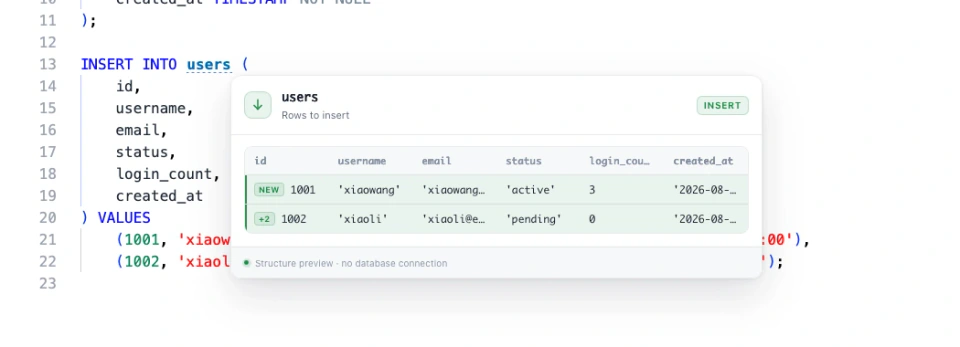
INSERT preview: the real panel places literal values under their column names, with green rows marking the data to insert.
UPDATE: see which fields change
Hover over the table name in a supported UPDATE statement to inspect the new values and the WHERE condition together. The panel highlights assigned fields, while other fields are shown as unchanged when a table definition is available.
For UPDATE users SET status = 'active' WHERE id = 1002, the important details are the new status and the condition selecting the record. Keeping them together makes a script review easier. The preview does not need to know the old value to show the assignment written in the source.
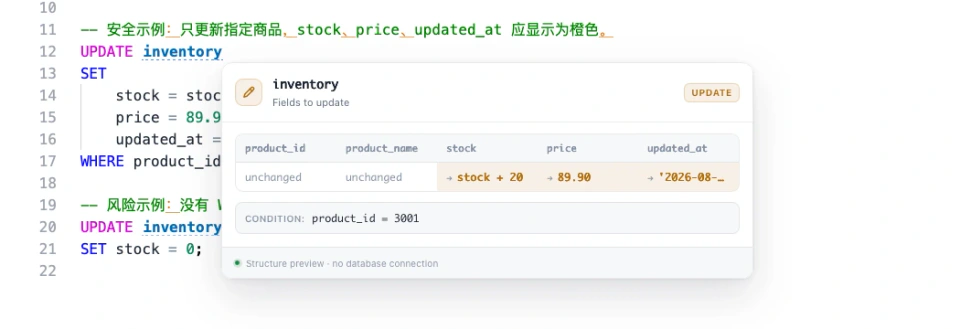
UPDATE preview: inventory assignments appear in orange, and the panel keeps product_id = 3001 visible underneath. stock + 20 remains an expression; it is not a calculated live value.
DELETE: keep the condition visible
A supported DELETE preview brings the WHERE condition into a compact panel. When a DELETE has no WHERE clause, the preview shows an all-rows warning, making that difference easier to notice while reading.
Compare DELETE FROM users WHERE status = 'pending' with DELETE FROM users. They look similar in a quick scan but describe very different operations. The preview calls attention to that distinction; it does not execute either statement or identify actual stored records.
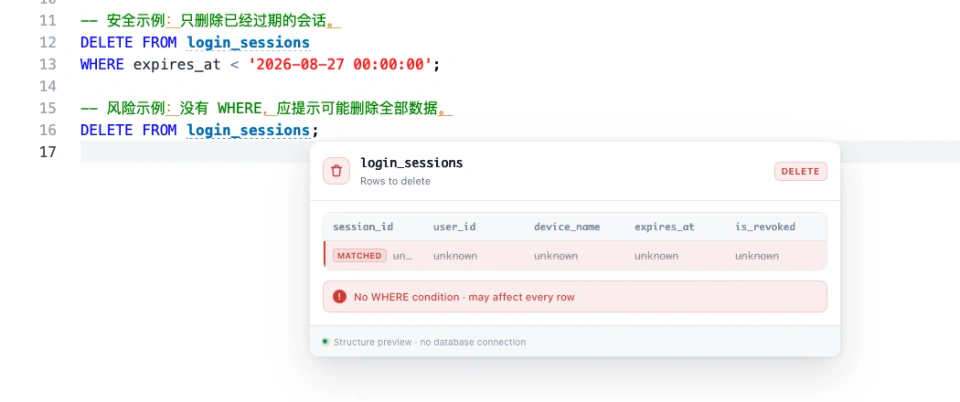
DELETE preview: hovering over login_sessions in the statement without WHERE displays the red all-rows warning. The unknown cells are not actual database records.
Open a SQL file on Mac and try the previews
- Save the fictional CREATE and INSERT sample, then choose Open in notePad++++ and select it. Your browser may display the sample as text or offer to download it.
- Confirm SQL in the editor's language selector.
- Open SQL tools and enable Table preview if it is off.
- Move the pointer over the marked
userstable name afterCREATE TABLE, pause briefly, and inspect the panel. You do not need to click the table name. - Move to the table name after
INSERT INTOto inspect the values in their columns. - Open the UPDATE and DELETE sample to compare assignments, conditions, and the DELETE without WHERE.
Actual notePad++++ screenshot: the Table preview switch is in SQL tools. The diamond-marked assistant actions above it are separate tools.
The samples use fictional data and example.com addresses. Open them as text in the editor; no database setup is needed to explore the supported previews.
Which preview helps with which task?
| When reading a script, you want to… | Hover over the table name in… | Look for… |
|---|---|---|
| Understand a new table | CREATE TABLE |
Fields, types, and recognized constraints |
| Match inserted values to columns | INSERT INTO … VALUES |
A compact grid of literal values |
| Check an assignment | UPDATE |
New values and the WHERE condition |
| Review a deletion | DELETE FROM |
The condition, or an all-rows warning |
You can keep editing the source normally, use search to find another table, or save an edited copy with Save As. For projects that mix SQL and configuration files, JSON structure previews offer another way to read structured text beside its source.
Supported previews and practical limits
The hover panel summarizes supported SQL text; it does not connect to a server or execute a query. UPDATE and DELETE previews describe the instructions, not real affected rows or a live before-and-after result. Use a compatible database client when you need query execution or actual database contents.
The compact panel shows up to eight columns and three INSERT rows. The current preview parser skips documents larger than 512 KiB; that limit applies to statement previews separately from the text editor. Unsupported statements and dialect-specific forms may still be readable as source without producing a panel.
This guide covers plain-text .sql files. Decompress .sql.gz files before opening them; binary database files and non-text backup archives need compatible database tools. The PostgreSQL SQL dump documentation explains the distinction between text scripts and other backup formats.
Try SQL hover previews on your Mac
Download notePad++++ on the Mac App Store, open the small demonstration files, and hover over the table names to compare the statement with its preview. Review the current App Store purchase and trial terms for additional assistant features.
FAQ
How do I show the SQL hover preview?
Open a .sql file, confirm SQL language mode, and enable Table preview in SQL tools. Move the pointer over the marked table name in a supported CREATE TABLE, INSERT, UPDATE, or DELETE statement and pause briefly. No click is required.
How do I open a SQL file on Mac?
Use Open in notePad++++ to open the text .sql file, then confirm SQL in the language selector. You can read and edit its source without importing it into a database.
Does opening the file execute SQL?
No. The table preview parses supported text statements locally; it does not execute them or connect to a database.
Can it open a SQLite .db file or a SQL Server .mdf file?
This guide covers plain-text .sql scripts. Binary database files need a compatible database viewer or database engine. Renaming them to .sql does not convert them.
Does an UPDATE or DELETE preview show real affected rows?
No. It shows assignments or a condition from the script. Previous values, real row contents, and affected-row counts are not known without executing against a database.
Can every SQL dump be previewed?
No. Preview supports a subset of SQL statements and dialects. The current preview parser skips documents larger than 512 KiB; long previews also limit displayed columns and rows. The text editor and preview have separate limits.
Notepad++ is a trademark of its respective owner. notePad++++ is an independent macOS text editor and is not affiliated with, endorsed by, or approved by the official Notepad++ project.