
Read the structure. Keep the source beside it.
JSON Viewer and Editor for Mac
Looking for a JSON viewer or JSON editor for Mac? notePad++++ puts a column-style structure browser beside editable source, so you can inspect nested values and make changes in the same window. This guide uses a real app screenshot and a downloadable fictional configuration file.
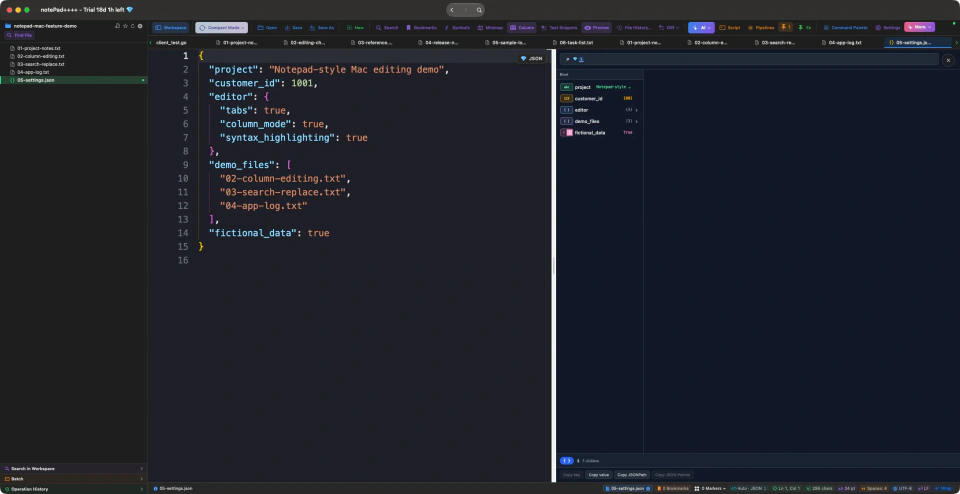
View and edit JSON in one Mac window
A JSON viewer helps you follow nested objects and arrays. A JSON editor lets you change their source text. In notePad++++, both views sit beside each other: read the structure on the right, edit the text on the left, and check syntax before saving.
The opening image is a real notePad++++ screenshot, reused from our Mac editing guide. It shows a fictional configuration, not a customer document. The structure pane is an additional reading aid; it does not replace the text editor or turn every value into an editable table cell.
Open a JSON file on Mac: a practical walkthrough
- Save the fictional settings example, then use Open in the app to open it. The sample link opens the file in your browser; save it locally to try the steps.
- Check that the language selector reads JSON. Use the correct extension for JSONC or JSON5 instead of forcing them through a strict JSON checker.
- Enable Preview if the structure pane is hidden. Start at the root, then choose an object or array to follow its children in the next column.
- In the source editor, change
"tabs": trueto"tabs": falseon a copy of the sample. Keepfalseunquoted: it is a boolean, not the string"false". - Check for errors and confirm the saved content before sharing it. Use Save As when you want to keep the original file.
This small example deliberately includes an object, an array, strings, a number, and a boolean, so you can compare their presentation without needing a large production file.
Browse nested values and copy their paths
The JSON Structure pane uses columns, similar to Finder's column view. Choose editor in the example to inspect its settings; choose demo_files to inspect the array. A breadcrumb shows where you are. Columns can be resized by dragging their divider.
The node details offer Copy key, Copy value, Copy JSONPath, and Copy JSON Pointer where applicable. These paths help identify a value in a nested document; copying a path does not run a query against a server. For example, the tabs setting belongs under editor, rather than at the root.
Structure search can look for keys, paths, or values. The current interface labels that search as Pro. A readable structure preview is useful even when you do not need those additional tools.
Format and check JSON without confusing its variants
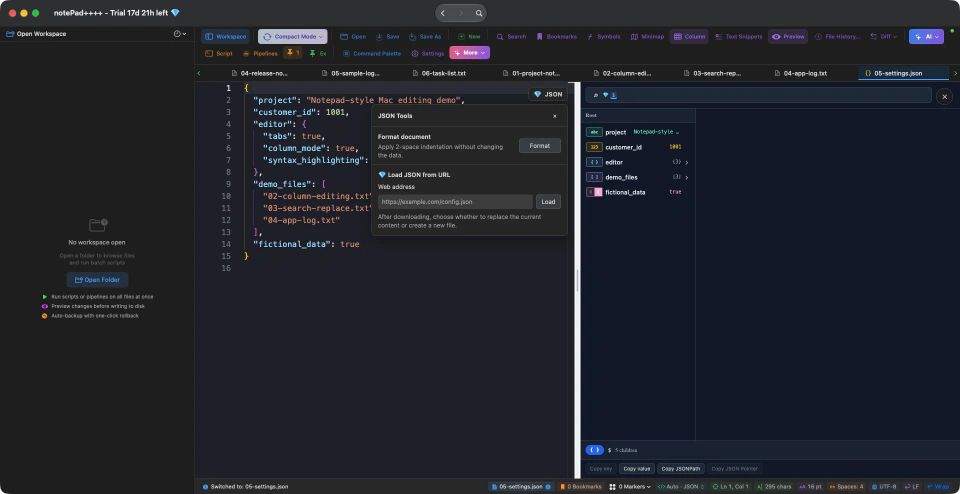
Source: actual notePad++++ window captured on October 15, 2026. The menu shows formatting and a web-address loader; no remote document was loaded for this screenshot.
The JSON Tools menu includes Format, described in the app as applying two-space indentation without changing the data. Formatting requires content the app can parse. When a file is invalid, use the error indication to locate the problem before formatting it. Formatting is not a substitute for checking whether the values are correct for your application.
| File type | What it permits | When to choose it |
|---|---|---|
.json |
Double-quoted keys and strings; no comments or trailing commas | Standard data exchange and strict configuration |
.jsonc |
Comments and trailing commas in this app's configuration-file mode | Configuration files intended for a JSON-with-comments reader |
.json5 |
Comments, single-quoted strings, unquoted keys, and other JSON5 syntax | Files explicitly expected to use JSON5 |
Do not just rename a file to silence an error. The program receiving it must support the same format. A file that is valid JSON5 may still be rejected by a strict JSON consumer. See the JSON5 specification and VS Code's JSON editing documentation for the format distinctions.
What to check before choosing a JSON editor
| Your task | What to look for in the app |
|---|---|
| Inspect a local configuration | Editable source with the structure pane visible |
| Follow a nested object or array | Column navigation and a visible path |
| Identify a value for another tool | Copy JSONPath or JSON Pointer |
| Find a key across a document | Structure search, marked Pro in the current interface |
| Tidy a valid document | Format in JSON Tools, whose entry is marked Pro |
| Work with comments | The correct JSONC or JSON5 language mode |
A dedicated JSON app may be a better fit if your main task needs a particular query language or a specialized data workflow. A general text editor is useful when JSON sits next to TXT notes, scripts, Markdown, or YAML in the same project. Test the files you actually use; the screenshots here do not establish a performance claim for very large documents.
Pro tools and local-file workflows
The current app marks the JSON Tools entry and structure search as Pro. Load JSON from URL and Related values are also additional Pro tools. Related values summarizes a key across records, including missing and distinct values. Opening a local sample does not require loading it from a website.
The URL loader makes a network request to the address you provide, then asks whether to replace the current content or create a new file. It was not used in this demonstration. Check the App Store listing for the current purchase and trial terms; this article does not promise that every JSON tool is free.
Try it with your own file
Download notePad++++ on the Mac App Store, open a copy of a JSON file you know, and compare the source with the structure pane. Start with the fictional sample above if you want a repeatable demonstration.
If you also inspect database export scripts, see our SQL file viewer for Mac guide. SQL statement previews have a different purpose from JSON structure browsing.
FAQ
How do I open a JSON file on Mac?
Open the .json file in notePad++++, confirm JSON in the language selector, and enable Preview to inspect its structure beside the source. You can edit the source in the same window.
Is a JSON viewer the same as a JSON editor?
A viewer helps you browse values; an editor lets you change the source. notePad++++ combines editable text with a structure preview. The preview is for navigation, not an inline spreadsheet editor.
What is the difference between JSON, JSONC, and JSON5?
JSON is the strict format with no comments. JSONC is JSON that allows comments and trailing commas, common in editor configuration files. JSON5 is a more relaxed superset that also allows single-quoted strings, unquoted keys, and hexadecimal numbers.
How do I copy the path to a value?
In the JSON structure view, select a node and choose Copy JSONPath or Copy JSON Pointer.
Can I format a file that has errors?
No. Format works only on valid content. If the content cannot be parsed, the app says it cannot be formatted and offers to locate the error.
Are all the JSON tools free?
No. The current app marks structure search and the JSON Tools entry as Pro; loading JSON from a web address and Related values are Pro features too. Check the current App Store listing and trial terms before choosing a plan.
Notepad++ is a trademark of its respective owner. notePad++++ is an independent macOS text editor and is not affiliated with, endorsed by, or approved by the official Notepad++ project.