
The code, the sample and the result
JavaScript Text Processing on Mac
Use notePad++++ to turn a repeated text job into a reusable JavaScript script on Mac. Follow the built-in Extract URLs script from its readable code to a sample run and a line-by-line diff, then make an editable copy for your own rules.
Start with a text job you can check
Suppose you have copied notes containing documentation links, image URLs and labels you do not need. You want a plain list of links, one per line. In notePad++++, Extract URLs is a built-in JavaScript script for that job: you can read its code, run its sample and inspect the differences before using it on your own text.
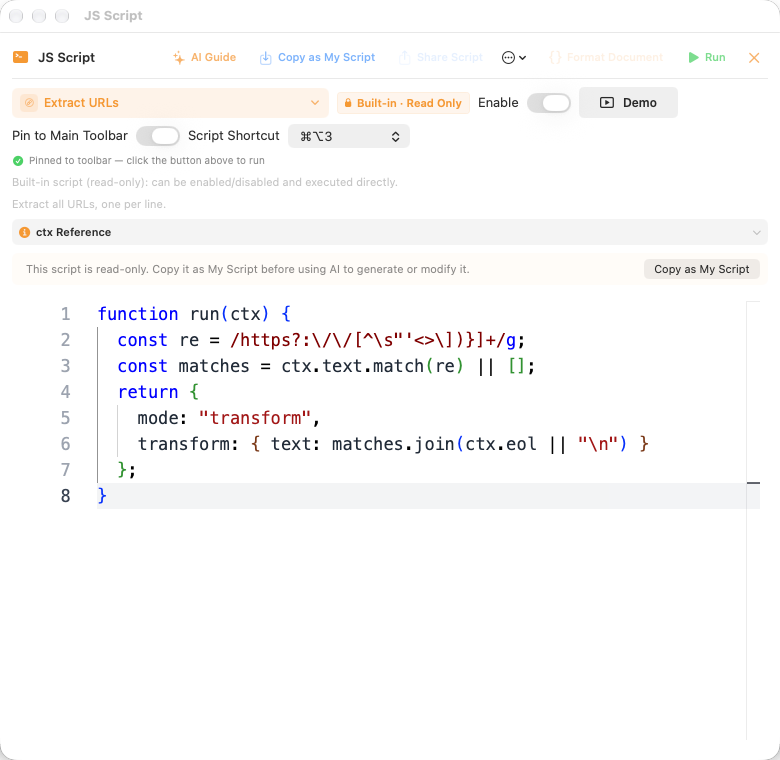
The opening screenshot is the actual JS Script window with Extract URLs selected. The second screenshot below shows the corresponding Script Demo result. Both are real App captures using sample text.
Download notePad++++ on the Mac App Store to try the same built-in example.
1. Read the actual Extract URLs script
Open JS Script and select Extract URLs. In the screenshot above, Built-in · Read Only explains why the original code cannot be edited directly. Demo runs a sample; Copy as My Script creates an editable copy.
Here is the built-in function shown in that window:
function run(ctx) {
  const re = /https?:\/\/[^\s"'<>\])}]+/g;
  const matches = ctx.text.match(re) || [];
  return {
    mode: "transform",
    transform: { text: matches.join(ctx.eol || "\n") }
  };
}
There are three useful parts to understand:
ctx.textis the text the App supplies to the script.match(re)collects matchinghttp://andhttps://links in order.transform.textreturns the new text, joining the matches with the document's line ending,ctx.eol.
This script extracts matching text. It does not visit the links, check that their pages exist or parse every possible URL format. For example, it does not collect relative paths or mailto: links. Review punctuation at the end of URLs copied from prose.
2. Run Demo and compare the input with the result
Click Demo beside the script selector. The App opens Script Demo, runs the built-in sample and shows Original Text on the left and Run Result on the right. The lower Diff panel shows which lines were removed and inserted; Report is a separate tab for execution information.
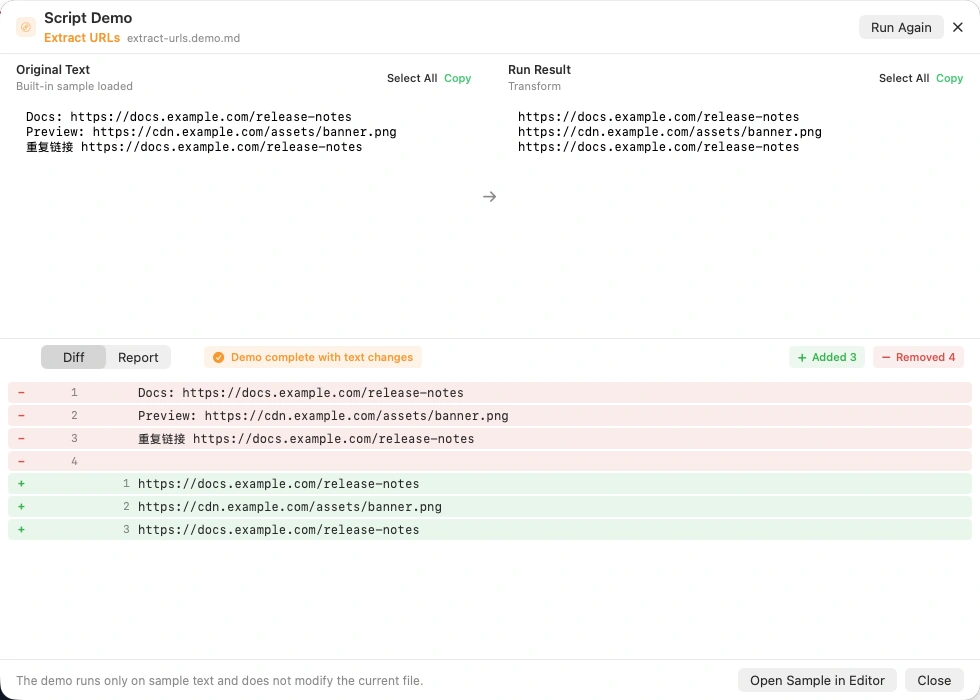
Source: an actual notePad++++ Script Demo capture. The sample contains two distinct URLs, with the documentation URL repeated. This is the built-in script's result, not an edited mockup.
The source text in the screenshot is:
Docs: https://docs.example.com/release-notes
Preview: https://cdn.example.com/assets/banner.png
重复链接 https://docs.example.com/release-notes
The result is:
https://docs.example.com/release-notes
https://cdn.example.com/assets/banner.png
https://docs.example.com/release-notes
The labels disappear, while the link order stays the same. The first URL still appears twice. Extracting links and removing duplicate links are different operations. This built-in script does the first one.
The note at the bottom of the real window is important: Demo runs only on sample text and does not modify the current file. You can use Copy above the result to copy the extracted list, or Run Again to repeat the sample.
3. Make your own copy when the rule needs to change
Return to the script window and choose Copy as My Script. Give the copy a name that describes its purpose, such as “Extract unique URLs.” The built-in original remains available, and your copy can use a different rule.
For example, this version adds a Set to keep only the first occurrence of each matching URL:
function run(ctx) {
  const re = /https?:\/\/[^\s"'<>\])}]+/g;
  const matches = ctx.text.match(re) || [];
  const urls = [...new Set(matches)];
  return {
    mode: "transform",
    transform: { text: urls.join(ctx.eol || "\n") }
  };
}
For the sample above, that change produces two output lines instead of three. It is an optional customization, not the built-in result pictured in the screenshot. The deduplication is an exact text comparison; differently written URLs remain different values.
Save your copy under My Scripts so you can use it again without rewriting the code. If you prefer separate operations, keep extraction as one step and use a deduplication step afterward.
4. Try the editing workflow on the sample first
In Script Demo, choose Open Sample in Editor. This opens the original sample text in a new document. You can then select your script and use Run to process that document, review the proposed text changes and choose whether to apply them.
This separates learning the script from changing an existing file. Check that the script is enabled, read the output and only save the document after it matches your intended result.
The script window also includes Pin to Main Toolbar and Script Shortcut. Pin a command you use often, then assign an available shortcut if you want to run it without reopening the script selector each time.
5. Use AI assistance for a rule you cannot write yet
The AI Guide button visible in the opening screenshot provides guidance for the App's script format. For an editable copy, notePad++++ also offers an AI Script Assistant to help create or modify code after you configure your AI provider and API access. This assistant requires Pro access or an eligible trial; your provider may charge for its use.
A useful request describes a concrete input and the exact result you want. For example:
Extract only HTTPS links from the input text. Keep their original order, remove exact duplicates and return one link per line using the App's run(ctx) format. Do not fetch the links.
Copy a read-only built-in script to My Scripts before asking the assistant to change it. Review the proposed code and test its output. The two screenshots in this guide show the built-in script and its sample run, not AI-generated results.
6. Reuse the rule in a larger text-processing workflow
Once the result is right for one document, you can combine focused scripts into an ordered pipeline: for example, extract links, remove duplicates and sort the list. Each step receives the previous step's text output.
For multiple files, use the App's workspace workflow rather than adding file-access code to the JavaScript. The scripts and folder-processing walkthrough shows the target-file selection, preview, backups and restore controls with real screenshots. Folder batch processing and its operation history require Pro access or an eligible trial.
JavaScript runs locally for ordinary text transformations; AI is optional. The App supplies document or authorized workspace text to the script and manages the file writes itself.
Get notePad++++ on the Mac App Store, open Extract URLs, and compare the script with its demo before adapting it to your own text.
FAQ
Do I need Node.js to run these JavaScript scripts on Mac?
No. notePad++++ runs its text-processing scripts locally with JavaScriptCore. You do not need a Node.js project, npm packages or a terminal for this example.
Does clicking Demo change my open file?
No. Demo runs the script on its built-in sample text. Open Sample in Editor creates a new document containing that sample so you can try the editing workflow separately.
Can I edit the built-in Extract URLs script?
The built-in script is read-only. Choose Copy as My Script to create a named, editable version while keeping the built-in original available.
Does Extract URLs remove duplicate links?
No. The built-in script preserves matching URLs in their original order, including duplicates. The demo shows the same documentation URL twice. Add a separate deduplication step or customize a copy if you want unique links.
Can AI help me write or modify a script?
Yes. AI Guide provides instructions for the App's script format. The in-app AI Script Assistant works with editable scripts and requires a configured AI provider and API access, plus Pro access or an eligible trial. Review the generated code and its result before applying changes.
Can a script open arbitrary files or fetch the URLs it finds?
No. Scripts process the text supplied by notePad++++ in an isolated JavaScriptCore context. They do not have direct file-system, network or process access. The App manages access to documents and authorized workspace files.
Notepad++ is a trademark of its respective owner. notePad++++ is an independent macOS text editor and is not affiliated with, endorsed by, or approved by the official Notepad++ project.