
Start with a ready-made rule. Keep it when it works.
Automate Text Files on Mac with Scripts
Clean up a list with built-in scripts, write a rule for your own text, and reuse it across a folder. In notePad++++, you can inspect changes before writing and recover eligible batch changes from their backups.
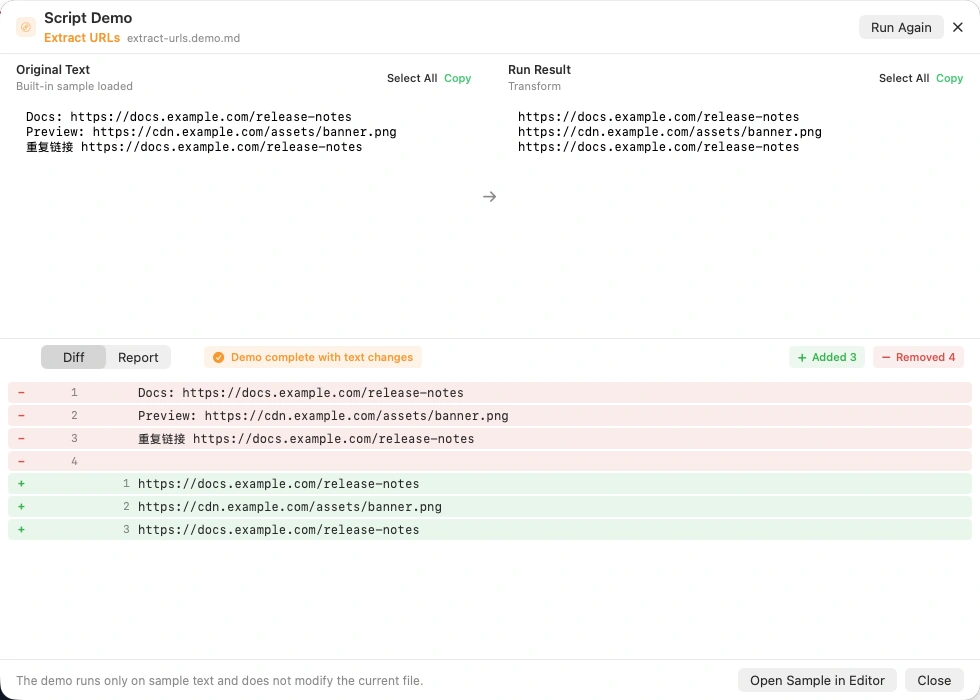
Automate the repeated part of editing
To automate text files on Mac, start with a built-in rule, check its result, then reuse it on the files that need the same change. If the rule does not exist yet, save a custom script instead of repeating the edit by hand.
The useful combination in notePad++++ is more than a code box: ready-made scripts, reusable sequences, an optional AI writing assistant, folder selection, a preview before writing, and an operation history with recoverable backups.
This guide is written by the developer of notePad++++. The opening image shows the built-in Extract URLs demo with sample text, extracted links and the proposed differences. The close-ups below were captured from the installed Mac App with a small, fictional roster folder. They have been cropped and converted to WebP; the controls and result counts have not been redrawn. The AI screenshot shows a prepared request, not a submitted request or a claimed AI-generated result.
Some advanced tools, including folder batch processing, its history and AI assistance, require Pro access or an eligible trial. Check the Mac App Store listing for current requirements and terms.
Watch: built-in tools and your own script
See a built-in script extract URLs, then inspect a saved custom JavaScript rule that changes OLD- prefixes to NEW-. The 48-second demonstration shows the result preview and how to keep a rule in My Scripts.
Start with the built-in scripts
You do not have to write JavaScript to begin. The checked App contains dozens of individual scripts, grouped by job, plus ready-made sequences in Pipeline Gallery.
| Your repeated task | A built-in starting point | Check before using it |
|---|---|---|
| Clean up pasted text | Trim Trailing Whitespace; Remove Empty Lines | Trimming trailing spaces is different from removing leading indentation. |
| Keep one copy of each entry | Deduplicate Lines (Keep Order) | Decide whether the original order matters and whether differently capitalized entries should remain distinct. |
| Order a list | Sort Lines A-Z or Z-A | Sorting deliberately changes the order. |
| Collect values from notes | Extract URLs, Emails, Numbers, IPs or Dates | Inspect the extracted values against your real input. |
| Reformat JSON | JSON Format (Pretty) or JSON Minify | Use valid JSON as input and review the output. |
| Convert identifiers or encodings | Naming-style conversions, URL encoding and Base64 tools | Choose the conversion that matches the receiving tool. |
Built-in scripts are read-only starting points. To adapt one, use Copy as My Script and save your own version rather than changing the original.
Reuse a sequence instead of repeating four commands
A pipeline is an ordered sequence of scripts: one step's output becomes the next step's input. The gallery includes:
- Word List / Roster Cleanup: trim trailing spaces, remove empty lines, remove duplicate lines, then sort.
- Link Harvest / URL List Cleanup: extract and organize links.
- Email List Cleanup / Address Book Dedup: extract addresses, normalize case, remove duplicates and sort.
- Other starting points for date lists, Markdown-to-text conversion, typography and shuffled lists.
The roster workflow is the one demonstrated below. It sorts the result; choose a different sequence when preserving the original order is part of the requirement. You can keep custom sequences in the Pipeline Center rather than choosing each step again.
Try the same folder used in the screenshots
Download the fictional demonstration folder (.zip). Extract it before opening it as a workspace in the App.
script-automation-demo/
  roster-east.txt
  roster-west.txt
  team/
    roster-north.txt
  README.md
The three TXT files contain repeated IDs, blank lines and trailing spaces. The Markdown file explains the example and should be excluded when only TXT is selected.
For example, the east roster starts with:
OLD-104
OLD-101

OLD-104
OLD-102
The downloaded second line also has trailing spaces. The roster cleanup produces the three IDs in order: OLD-101, OLD-102, OLD-104.
Add a custom script when the built-ins do not match
Suppose the next job is specific to your project: change OLD- to NEW- only at the beginning of each line, leaving everything else alone.
- Open the sample TXT file, then click Script in the toolbar.
- Choose Script Draft, or use Copy as My Script when starting from a built-in.
- Enter a supported
run(ctx)function. Here is the rule used in our demonstration:
function run(ctx) {
  return {
    mode: "transform",
    transform: {
      text: ctx.text.replace(/^OLD-/gm, "NEW-")
    }
  };
}
ctx.text is the text supplied by the App. The rule returns the proposed result; it does not open or write files itself. The beginning-of-line pattern limits the change to the prefix.
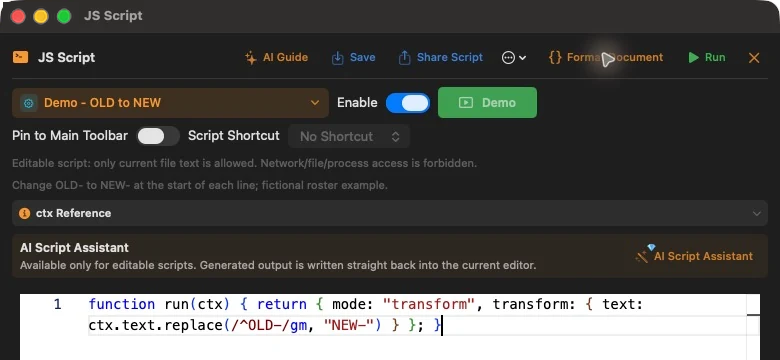
Use Save as My Script to give the rule a name and reuse it later. In this demonstration, Run opened a Script Change Preview before the result could be applied to the document.
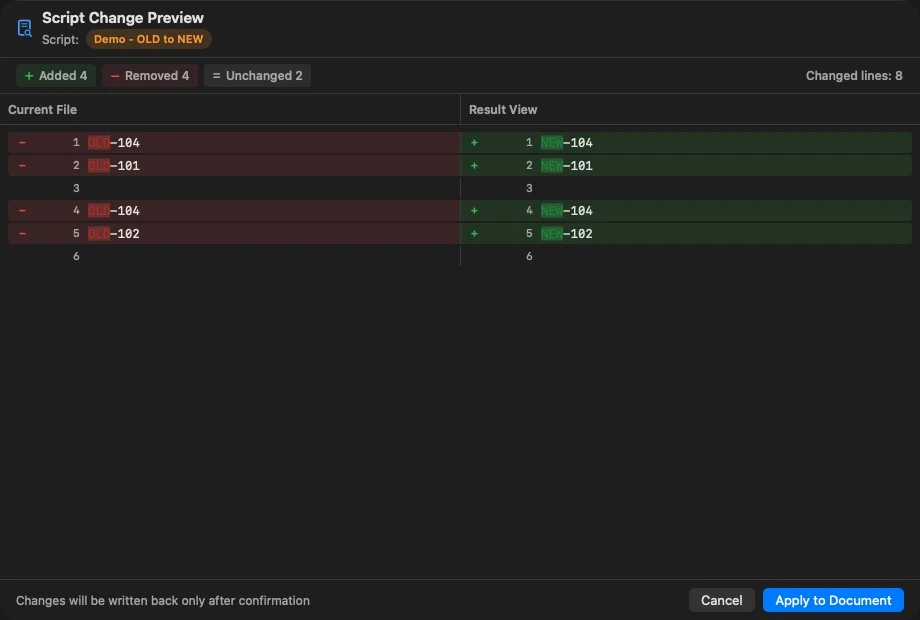
This example was written manually. For the input fields, supported return values and reusable script details, read the JavaScript text-processing guide.
Ask AI to help express your rule
If you can describe the edit more easily than you can code it, configure your chosen provider and its API access, then open AI Script Assistant from an editable script.
Choose Generate New Content to request a new rule or Modify Existing Content to work from the current script. A useful request names both the required change and the text that must stay unchanged:
Change OLD- to NEW- only at the start of each line. Keep every other character, line order and blank line unchanged. Return a run(ctx) function using the App script contract.
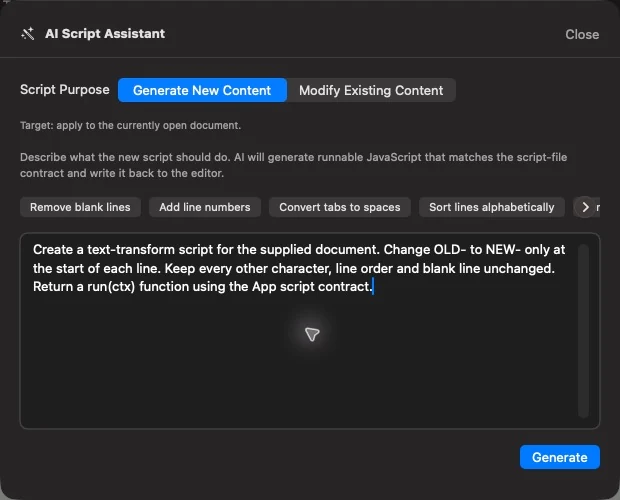
Review the returned code in the script editor and test its output on a small example before saving or applying it. AI can misunderstand a rule; a successful request does not prove the edit is correct.
Built-in and custom scripts can run locally without AI. The optional assistant sends a request to the provider you configure, whose data-handling terms and possible fees apply. Use a fictional sample when you do not want to include a real document in a request.
Watch: preview, back up and restore a folder edit
This 52-second demonstration follows a folder operation from file selection and a preview without disk writes to application and restoration from Operation History. Watch the differences before applying, then see the original prefixes return after restoring three demonstration files. Backups are kept for seven days; restoration skips files changed since the operation or open with unsaved edits.
Preview a script or pipeline across a folder
- Use Workspace → Open Folder to open the extracted demonstration folder.
- Expand Batch in the workspace panel. Select .txt and deselect other types for this example.
- Open the script/pipeline menu and choose Word List / Roster Cleanup. A saved custom script can be selected there instead when that is the rule you want to apply.
- Check the displayed file count, then click Preview.
- Confirm the target list and choose Preview mode (no disk writes).
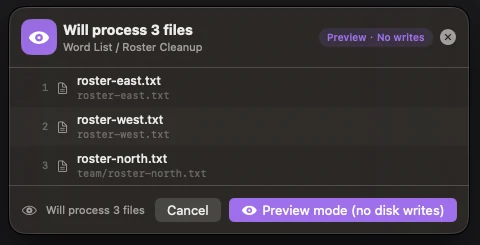
After the run, expand a Would Change result and click View Diff. Review each kind of change before applying it.
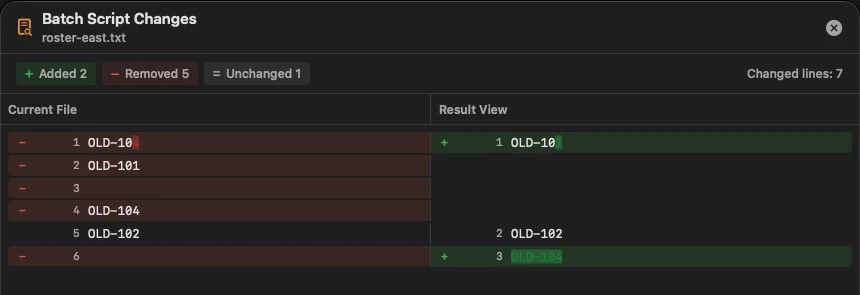
In our test, the three TXT files and README.md were byte-for-byte unchanged after Preview. The preview computed proposed results; it had not written them to disk.
For a larger folder, narrow the file types and use the available path and filename filters. Inspect the resulting file list rather than assuming every file in the folder will be processed. This workflow edits text contents; it is not a general file-renaming tool.
Apply the reviewed changes and inspect their backups
Use Apply for an individual preview result or Apply All for the eligible results you reviewed. This writes changes to disk. Actual batch writes create backups before changing the files; a backup failure is reported rather than silently proceeding with an unbacked write.
Open Operation History, select the applied operation and inspect its file list.
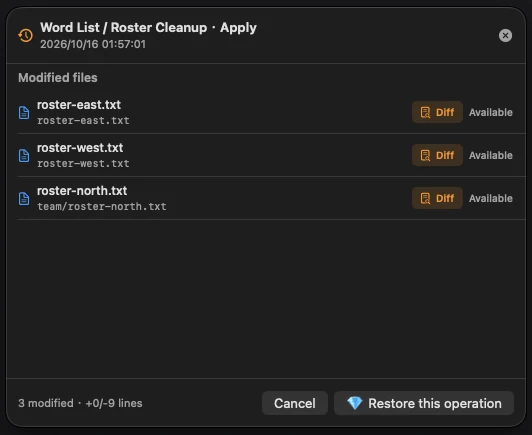
The demonstration changed all three TXT files and left README.md unchanged. Each TXT contained its three unique IDs in sorted order after application.
Restore an operation while its backups are available
In that operation's details, choose Restore this operation. The screenshot below was captured after restoring the same three files.
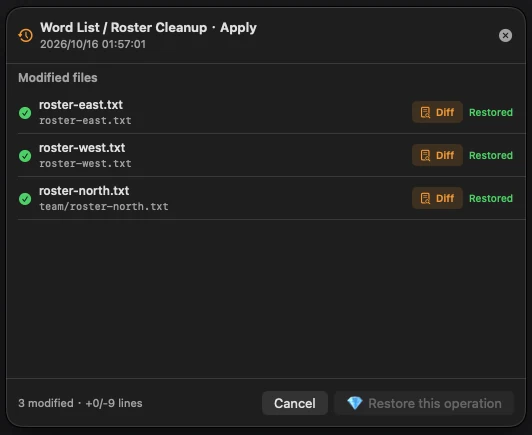
Restoration has specific boundaries:
- Backups are kept for seven days, not indefinitely.
- The operation belongs to its workspace; open that folder to restore it.
- A file changed since the operation, or open with unsaved edits, is skipped rather than overwritten.
- Missing or expired backups cannot be used. Check the completion message for errors or skipped files.
Keep your normal backups for important work. Operation recovery is useful for reversing an eligible batch edit; it is not a permanent version archive.
Make the rule reusable, then widen the scope
Start with one file and a clear expected result. Keep the built-in script or save your custom rule once the output is correct. If the task has several stages, save them as a pipeline. Move to a folder only after checking the target files and differences.
The practical advantage is having these steps in the same App: ready-made operations → your own rule → optional AI help → folder preview → backed-up application → recovery.
Try the demonstration folder, then open a copy of your own files in notePad++++. For a task that only needs to locate several clues rather than change files, the multi-keyword search guide is a better starting point.
FAQ
Can I automate text cleanup on Mac without writing code?
Yes. Start with a built-in script or a ready-made pipeline for jobs such as trimming trailing spaces, removing empty lines, deduplicating, sorting or extracting links. Inspect its result on a small example first.
What if none of the built-in scripts fits my text?
Write a custom JavaScript run(ctx) function, or use Copy as My Script to adapt an existing script. Save it under My Scripts for reuse. The script receives text from the App; it does not open arbitrary files itself.
Can AI help me write the script?
Yes. Configure your own AI provider and API access, then use AI Script Assistant to create or modify a script. This is optional. Check the generated code and preview its output; provider terms and charges apply.
Can I run a script on a folder of text files?
Yes. Open an authorized workspace folder, select file types and filters, choose a script or pipeline, then use Preview. Check the file list and per-file differences before applying changes. Batch processing requires Pro access or an eligible trial.
Does Preview change the original files?
The batch Preview mode calculates results without writing to disk. Apply or Apply All is a separate action. In our three-file test, the original bytes were unchanged after Preview.
How do I undo a batch script operation?
Open its entry in Operation History and use Restore this operation while its backups are available. Batch backups are retained for seven days. Files edited since that operation, or with unsaved open edits, are skipped rather than overwritten.
Do I need Node.js, npm or a Terminal command?
No. The App runs supported text-processing JavaScript locally. It is not a general Node.js environment: arbitrary filesystem, network and process access are unavailable, and execution has limits.
Does restoration replace a separate backup of my work?
No. Operation backups are temporary, apply to the files backed up for that operation and have eligibility checks. Keep your normal backups for important work and check any errors or skipped files after restoring.
Notepad++ is a trademark of its respective owner. notePad++++ is an independent macOS text editor and is not affiliated with, endorsed by, or approved by the official Notepad++ project.