
Find all the clues, even when their order changes
Search Multiple Keywords in a Text File on Mac
A log can contain both words you need without containing the exact phrase you typed. Use multi-keyword AND search to find a line—or a paragraph—that contains every word, even when the words appear in a different order.
When an exact phrase misses the record you need
To search multiple keywords in a text file on Mac, use AND matching when every word must be present. In notePad++++, choose whether those words must appear on one line or anywhere inside one paragraph. You do not need to write a regular expression—a pattern used to find structured text—for this task.
Suppose you are investigating a payment problem. One record says payment timeout; another says timeout during payment. A normal phrase search finds the first wording but misses the second. Searching only timeout also brings in unrelated login problems.
Multi-keyword AND search addresses that gap: enter payment timeout and require both words, with no fixed order.
This guide is written by the developer of notePad++++. All screenshots are cropped from the actual Mac App using the fictional TXT sample below; the interface and result counts have not been redrawn. The feature requires Pro access or an eligible trial. Check the Mac App Store listing for current requirements, pricing and access.
Watch: find every keyword, in either order
See the same query find both payment timeout and timeout during payment, then switch from same-line to same-paragraph matching. This 40-second demonstration shows real searches on a fictional text file; the AND modes require Pro access or an eligible trial.
Download notePad++++ on the Mac App Store to try it with your own files.
Try the same TXT file used in the screenshots
The sample deliberately includes successful matches and near misses. It is short enough to check manually before using the feature with your own notes or logs.
Preview the sample TXT in your browser · Download the sample TXT
The preview link shows the file; it does not launch the App or edit the website copy. Download it first, then open the saved file in notePad++++.
These are the key records:
2026-10-16 ERROR payment timeout request=101

2026-10-16 WARN timeout during payment request=102

2026-10-16 INFO payment completed request=103

2026-10-16 WARN login timeout request=104

REQUEST DETAIL: RECORD 105
operation: payment
reason: timeout
status: retry

SEPARATE RECORD: 106
operation: payment

SEPARATE RECORD: 107
reason: timeout
The blank lines are intentional. They keep each record separate, including records 106 and 107, which must not be combined into one match.
Find lines containing all keywords, in any order
- Open the downloaded TXT file and click Search in the regular toolbar to open Search / Replace.
- Turn Advanced Regex off. The Match Mode menu is shown in ordinary text-search mode.
- In Match Mode, choose Multi-Keyword AND (Line).
- Enter
payment timeout, separated by a space. Use Find Next and Find Previous to move between matches.
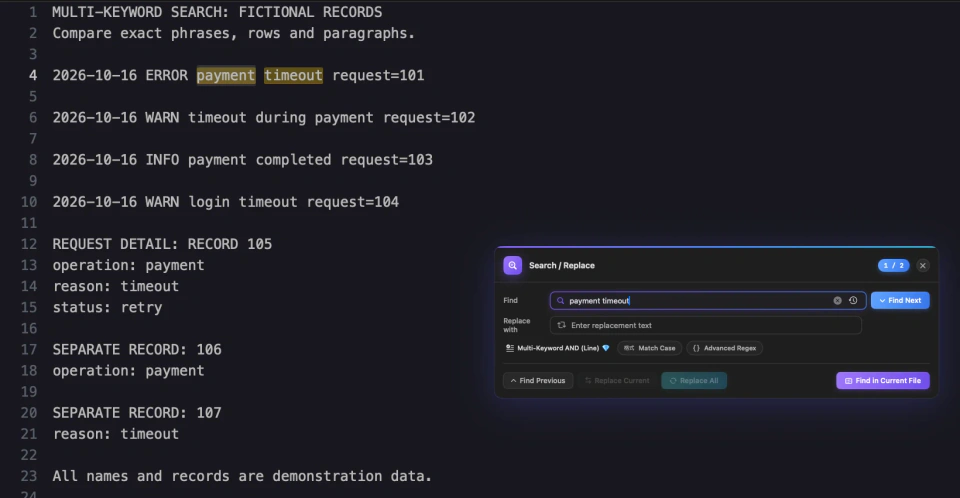
The screenshot's counter reads 1 / 2: the first of two matching lines is selected. Record 101 matches because it contains the phrase; record 102 also matches even though the words are reversed and separated by other text. Records 103 and 104 each lack one required word.

A closer crop of the opening capture. Both words are required; their order is not. The counter refers to matching lines, not the total number of word occurrences.
Use line mode when one line is one record: a log entry, a list item, or a row of exported text. This keeps an unrelated word on another line from making a record qualify.
Find multiple words within the same paragraph
Some records span several lines. In record 105, payment appears after operation:, while timeout appears after reason:. Line mode correctly excludes it because neither line contains both words.
Keep the query payment timeout and change Match Mode to Multi-Keyword AND (Paragraph). Use Find Next or Find Previous to inspect the matches. Now there are three matching paragraphs: records 101, 102 and 105.
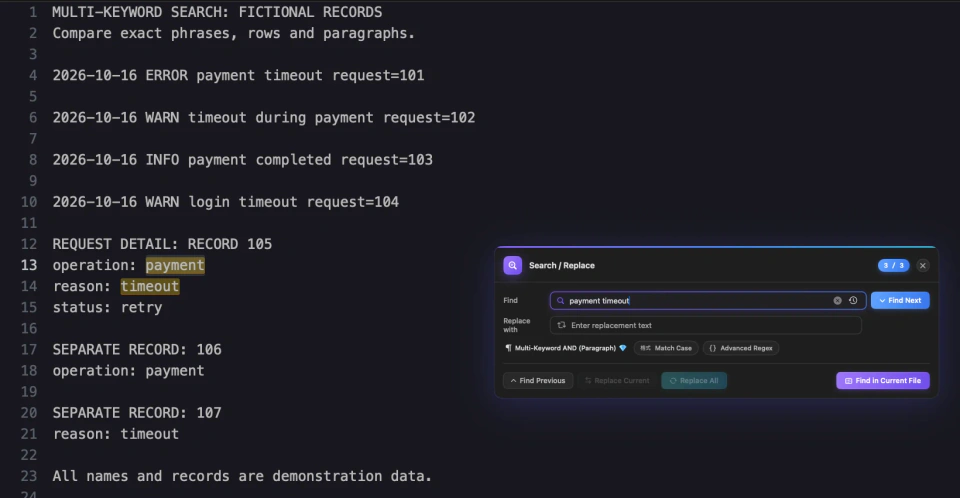
Real capture: the third of three matching paragraphs is selected. The two words are on different lines in one record. Records 106 and 107 remain separate because a blank line divides them.
Here, a paragraph means a group of nonblank lines. A blank line, including a whitespace-only line, separates groups. It does not mean a visual line created by word wrapping, a heading, or a particular number of sentences.
This makes paragraph mode useful for issue notes, support records, interview excerpts or configuration-style text where the clues belong to one block. If a long file has no blank lines, much of it can become one paragraph; line mode may give more useful results.
Check what should—and should not—match
With the query payment timeout, the expected results are:
| Record | Contains the exact phrase | AND: same line | AND: same paragraph |
|---|---|---|---|
101: payment timeout |
Yes | Yes | Yes |
102: timeout during payment |
No | Yes | Yes |
103: only payment |
No | No | No |
104: only timeout |
No | No | No |
| 105: one word on each of two lines | No | No | Yes |
| 106 and 107: separated by a blank line | No | No | No |
Observed totals in the sample: one phrase occurrence, two matching lines, three matching paragraphs. The number changes because you changed what counts as one result, not because the words in the file changed.
Phrase, OR, AND or regex: choose the question first
A phrase search asks, “Where does this exact wording appear?” An OR search asks, “Where does at least one of these terms appear?” An AND search asks, “Where do all these clues occur together?” Those are different questions.
For comparison, ordinary Contains mode with payment timeout finds one occurrence in this file:

Real capture in ordinary Contains mode. Only the adjacent phrase matches. The smaller editor text reflects a separate capture before increasing the demonstration font size.
Use a regular expression when you need a structured pattern, such as an ID format or a precise replacement. Regex can also express some multi-term conditions, but the AND modes provide a direct menu choice for the line-or-paragraph question. See the regex find and replace guide for that separate workflow.
Important input and access details
- Use 2–8 terms. Spaces and other whitespace divide the query into terms. Enter the words themselves; you do not need to type
ANDbetween them. - Terms are literal text. Typing
payment.*timeoutdoes not turn this mode into a regex search. Quotation marks do not create a grouped phrase. - Match Case controls letter case. Turn it on only when uppercase and lowercase differences should affect the result.
- This is substring matching. A short term can occur inside a longer word. The separate whole-word and regex options are not combined with these AND modes.
- Replacement is disabled. A matching paragraph does not define a single safe replacement target. Inspect the result, then choose a separate editing operation if needed.
- The feature needs Pro access or an eligible trial. Basic text editing and this search feature have different access requirements.
Folder and workspace search also expose AND-L and AND-P controls. Their labels mean the same line and paragraph conditions. Check the selected folder, filters and any skipped-file notices when searching beyond the current file; an empty result does not prove every file was searched.
A practical way to use it on your own files
Start with two distinctive clues, choose the smallest meaningful scope, and inspect a few results. For a one-line log use Line; for a multi-line record separated by blank lines use Paragraph. Add another term only when it removes results you do not need.
Keep an unedited copy of an important file, and check the actual text before changing or sharing it. This guide demonstrates matching behavior on a small sample; it does not establish large-file performance or that other editors lack comparable search features.
Download notePad++++ on the Mac App Store and try the sample. For opening, saving and organizing ordinary TXT files, continue with Notepad for Mac.
FAQ
How do I search multiple words in a text file on Mac?
Open the file in notePad++++, open Search / Replace, switch Advanced Regex off, and choose Multi-Keyword AND Line or Paragraph from Match Mode. Enter 2–8 space-separated terms and use Find Next. These modes require Pro access or an eligible trial.
Does the order of the keywords matter?
No. With payment timeout in a multi-keyword AND mode, timeout during payment also matches when both words appear in the required line or paragraph. Ordinary Contains mode instead looks for the typed phrase together.
What is the difference between line and paragraph search?
Line mode requires every term on one line. Paragraph mode requires every term within one group of nonblank lines, so words may be on different lines. A blank line ends that group.
Can I search for any one of several words?
That is an OR search: any one term is enough. The AND modes in this guide require every term. Use a different query mode for an OR search; do not assume the results have the same meaning.
Can I replace all multi-keyword matches?
No. Multi-keyword AND modes disable replacement. They identify lines or paragraphs for inspection. For a specific replacement, switch to an appropriate ordinary or regex search and review the result first.
Can I search exact phrases inside the keyword list?
The list is split on whitespace into 2–8 literal terms. Quotation marks do not group a phrase containing spaces into one term. Short terms can match inside longer words; these modes do not apply a whole-word filter.
Notepad++ is a trademark of its respective owner. notePad++++ is an independent macOS text editor and is not affiliated with, endorsed by, or approved by the official Notepad++ project.