A practical guide to local text files
Notepad for Mac: Open, Edit and Save TXT Files
For a simple notepad on Mac, start with TextEdit in plain-text format. For notes organized inside an app, consider Apple Notes. If you regularly switch between TXT files, checklists and logs, notePad++++ adds document tabs, focused views and text-search tools.
Written by the developer of notePad++++. All App images below reuse real captures of the same fictional TXT demonstration workspace. They show the interface, not a speed or memory comparison. Apple instructions are linked to official documentation, checked October 16, 2026.
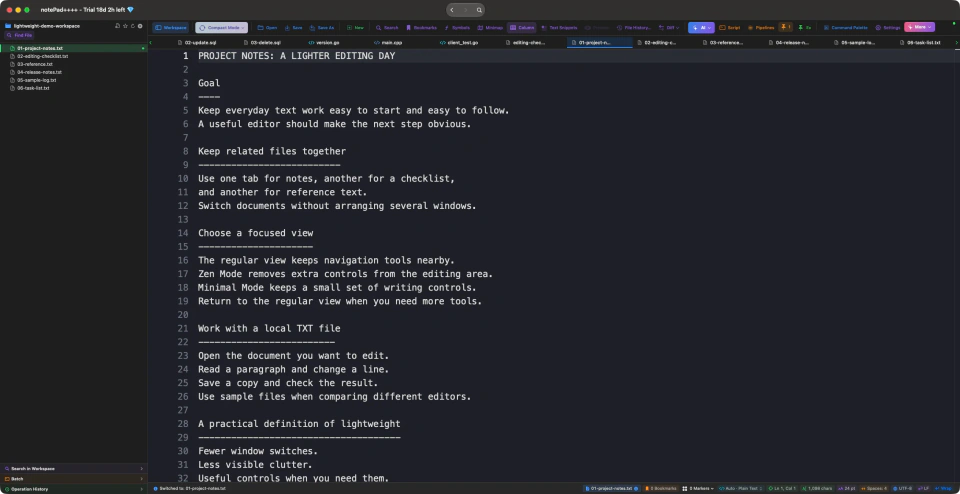
Real App screenshot, reused from our TXT editing demonstration: project notes are open alongside a checklist, reference text and a sample log. Click any screenshot to inspect it at full size.
On this page
Does Mac have a notepad?
Yes: TextEdit is the built-in starting point for ordinary text files. Use its plain-text format when the output needs to be a .txt file. A rich-text document and a plain-text file are different formats.
Windows Notepad, Notepad++ and notePad++++ are different products. This guide covers everyday TXT editing. If you mean the Windows Notepad++ application, use the separate compatibility guide below. notePad++++ is an independent Mac app, not an official Microsoft Notepad or Notepad++ release.
Create a TXT file with TextEdit
1. Open TextEdit and choose File > New. If the opening dialog appears, choose New Document.
2. Choose Format > Make Plain Text. Converting an existing rich-text document removes its formatting, so use a copy if those styles matter.
3. Type a few lines, choose File > Save, and name the document notes.txt. Pick a folder you can find again.
4. Reopen the saved file and check its contents. To open an existing TXT file in TextEdit, use File > Open.
Choose a Mac notepad by the file you need to keep
A shopping note stored in a notes library and a TXT file used by another application are different tasks. Decide where the result needs to live before choosing an editor.
Apple Notes can import TXT files as notes. Importing creates a note in its library; it is not the same workflow as continuing to edit the original TXT file in Finder. Available export options depend on your macOS version.
Choose TextEdit for an occasional plain-text file, Notes for a notes library, or try notePad++++ when you need several local text files and more editing tools together. None of these choices requires abandoning the others.
TextEdit, Apple Notes or a dedicated TXT editor?
| Your task | Start with | Check before choosing |
|---|---|---|
| Create or edit an occasional TXT file | TextEdit | Choose plain-text format. |
| Keep notes organized inside a notes library | Apple Notes | Import and export are separate from editing the original file. |
| Switch between local notes, checklists and logs | notePad++++ | Try document tabs and the workspace file list. |
| Read or write with fewer visible controls | notePad++++ | Try Minimal Mode and Zen Mode with the same TXT file. |
| Find several clues together in a line or paragraph | notePad++++ | Multi-keyword AND search needs Pro access or an eligible trial. |
Open, edit and save a TXT file in the App
Start with a copy of a small file, such as the demonstration project notes linked below. In notePad++++, click Open, choose the .txt file, and read the first paragraph. The opening screenshot shows this ordinary local-file workflow.
Change one line so the saved result is easy to recognize. Use Save As to choose a new filename and location when you want to keep the original; use Save to update the current file. Reopen the saved copy and check that your changed line is still there.
Check the filename, encoding and line endings when sharing text with another tool. UTF-8 is a useful starting point for new text files; do not blindly change the encoding of an older file whose receiving system requires something else.
The sample link opens the text in a browser tab. It does not launch the desktop App or allow you to edit the original website file. Use the separate download link to keep a copy for the tutorial.
Try your everyday TXT files in notePad++++
Open a copy of a note, checklist or log, try the tabs and focused views, then save and reopen it. Check the App Store listing for current system requirements, pricing and feature access.
Download notePad++++ on the App StoreSee the App Store listing for current pricing and macOS requirements.
Keep notes, checklists and logs in separate tabs
Open the checklist and reference text as additional documents in notePad++++. Each can keep its own file and tab, so you can move between instructions and notes without combining everything into a single long document.
For related files in one folder, open that folder as a workspace and use its file list. The opening capture shows six TXT files in the sidebar. A workspace is useful for navigation; you do not need to create a software project to edit one note.
Use Minimal Mode for a quieter writing view
Open Compact Mode in the regular toolbar and choose Minimal Mode. It hides the regular panels and leaves a small strip for background color, text color, font size and exiting the mode.
The capture below shows the same project-notes TXT file on a pale background. These controls change its appearance in the editor; the saved TXT file does not acquire fonts, colors or rich-text formatting.
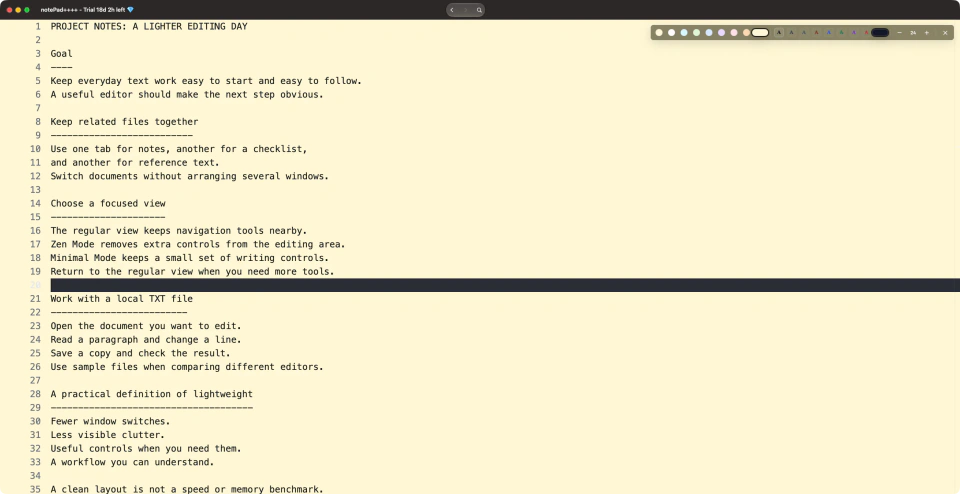
Reused real screenshot of the same TXT document. Minimal Mode changes the writing view while the file stays plain text.
Use Zen Mode for a focused reading pass
Choose Zen Mode from Compact Mode when you want the document to take most of the window. The demonstrated view hides the sidebar, tab strip and regular toolbar. Use the exit control to return before switching files or opening more tools.
Compare it with Minimal Mode using the same note: Zen Mode keeps the document and exit control, while Minimal Mode also offers a few readability controls. Both are shown in ordinary windows. A cleaner layout does not prove lower memory use or faster performance.
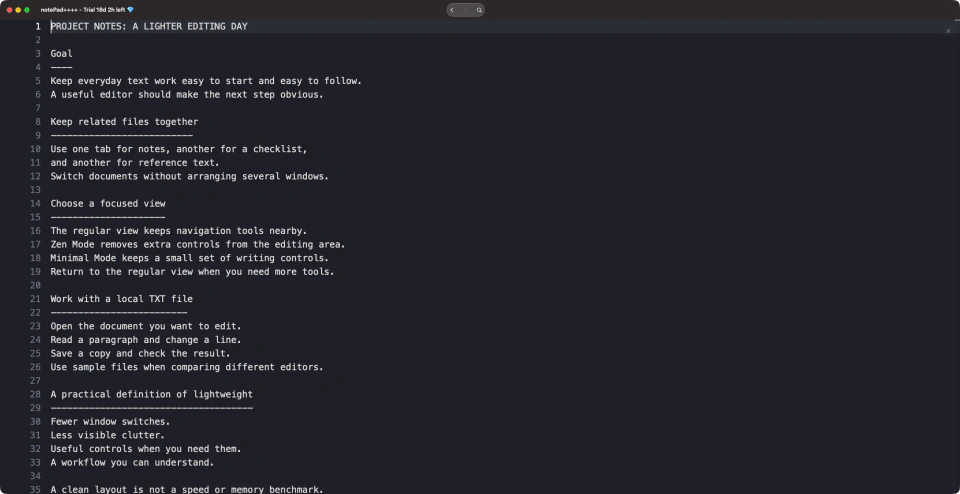
Reused real App capture: the TXT file in Zen Mode. Exit the view to return to tabs and the regular toolbar.
When one search term is not enough
A log may contain the right words in a different order. For example, searching for payment timeout as an exact phrase will miss a line that says timeout while processing payment.
notePad++++ has two multi-keyword AND modes: a line must contain every keyword, or a paragraph must contain every keyword even across separate lines. AND means all the words are required. Enter 2–8 whitespace-separated terms; their order does not matter. Blank lines separate paragraphs.
These modes search literal text, rather than a regular expression. They support case-sensitive matching, but do not perform replacement. They require Pro access or an eligible trial. For an ordinary single-word lookup, use the regular search mode.
This is useful for narrowing notes or logs by several clues. It is different from searching for any one word, or looking for an exact multi-word phrase. Check which line or paragraph matched before acting on a result.
Check these details before calling the file finished
A plain-text note is easy to move between tools, provided you keep the actual file and its intended format. Use a short check before sending it to someone else or loading it into another application.
- File type: confirm the file is TXT when plain text is required.
- Location: know which folder contains the saved copy.
- Contents: reopen it and check the line you changed.
- Compatibility: check encoding and line endings for the receiving tool.
FAQ
What is the Mac equivalent of Notepad?
TextEdit in plain-text format is the built-in starting point for ordinary TXT files. Notes suits a notes library; a dedicated text editor may suit several local files and more advanced search.
How do I create a .txt file on Mac?
In TextEdit, create a document, choose Format > Make Plain Text, type your text, then choose File > Save and name the file with a .txt extension.
Why is my TextEdit document an RTF file?
It is using rich-text format. Convert a copy with Format > Make Plain Text when you need TXT; that removes formatting.
Is importing TXT into Apple Notes the same as editing the file?
No. Importing creates a note in the Notes library. Use a text editor when you need to update the original local TXT file.
Is notePad++++ an official Notepad or Notepad++ app?
No. notePad++++ is an independent macOS app. Windows Notepad and Notepad++ are separate products; this is not an official Mac release of either.
Can I search for several keywords without learning regex?
Yes. notePad++++ offers multi-keyword AND search for a line or paragraph, with 2–8 space-separated terms in any order. It requires Pro access or an eligible trial and does not support replacement.
Is notePad++++ completely free?
Do not assume every feature is included at no cost. Check the current App Store listing and in-App feature access; multi-keyword AND search is a Pro feature.
Try your everyday TXT files in notePad++++
Open a copy of a note, checklist or log, try the tabs and focused views, then save and reopen it. Check the App Store listing for current system requirements, pricing and feature access.
Download notePad++++ on the App StoreSee the App Store listing for current pricing and macOS requirements.