
HTML source and the rendered page in one Mac app
HTML Editor for Mac with Side-by-Side Preview
notePad++++ is a native Mac text editor with an HTML preview beside your code. Open a local HTML file, review the rendered page, and use HTML tools to navigate its structure or check common mistakes. The screenshots below show these features in the actual Mac app.
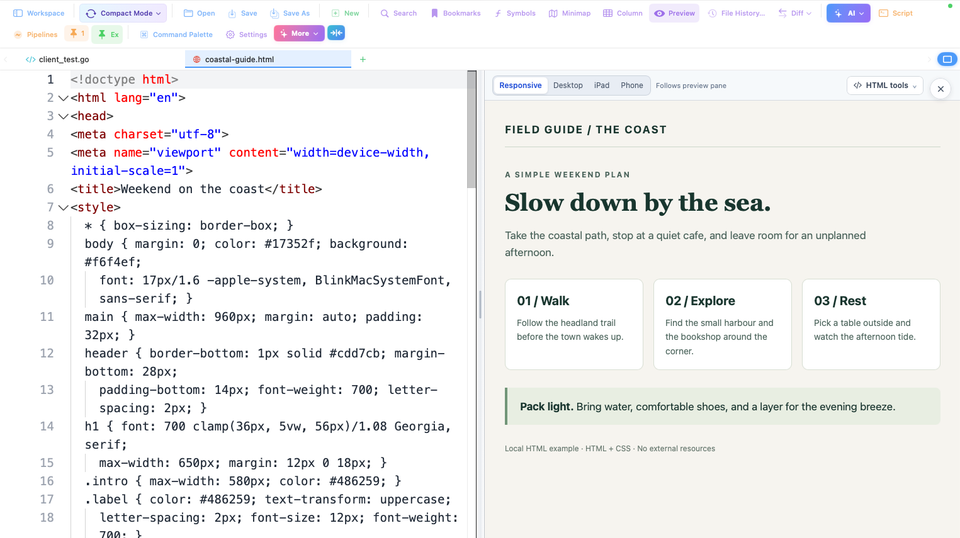
Open a local HTML file and see the page beside its source
notePad++++ is an HTML editor for Mac with a rendered preview beside the source. You can inspect the code on the left and the page on the right in the same window.
The example in this guide is a local HTML document called coastal-guide.html. It contains a heading, three itinerary cards, a packing note, and its CSS in a single file. The screenshots show the actual App, including its editor and preview controls.
- Open your
.htmlfile in notePad++++. - Choose Preview in the editor toolbar to show the rendered page beside the source.
- Start with Responsive to let the preview follow the available pane, or Desktop to use a fixed width and height.
- Keep the source visible while you inspect the heading, spacing, and page layout.
A self-contained HTML page can be previewed locally before you upload it to a website. If your page references separate CSS, JavaScript, or image files, keep those resources in the folder the App can read.
Download notePad++++ on the Mac App Store to try HTML editing and preview with your own local file.
Make small HTML and CSS changes, then check the result
For a first edit, change the text inside a heading, then save with Command-S. Close Preview and open it again to check the saved result. This is the refresh sequence verified in the current App: the changed heading appeared after reopening the preview. The text edit did not appear immediately during our check, so automatic refresh after every keystroke is not confirmed here.
Then try changing one CSS value, such as the space between cards, and repeat the same save-and-preview check. Changing one thing at a time makes it easier to understand which rule affected the page.
Keep the distinction between source and appearance in mind. A heading is edited in the HTML; its size, color, and spacing are controlled by CSS. The preview shows the result of those rules. It is useful for reviewing a small static page, learning HTML, or checking a page generated by AI before using it.
The example uses a three-column card grid with a narrow-screen rule:
.cards {
  display: grid;
  grid-template-columns: repeat(3, 1fr);
  gap: 16px;
}

@media (max-width: 600px) {
  .cards {
    grid-template-columns: 1fr;
  }
}
The media query is what makes the cards stack at a narrow width. Changing a preview size helps you test that rule; it does not create responsive CSS automatically.
Find editing and inspection commands in HTML tools
Open HTML tools in the preview toolbar to find the App's HTML-specific actions. The menu keeps document checks, paired-tag editing, structure navigation, and preview inspection close to the page you are editing.
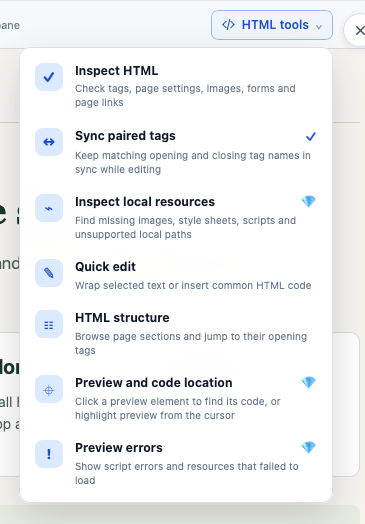
Actual App screenshot: open HTML tools from the preview toolbar to choose an HTML editing or inspection action.
Use document inspection when you want to check common mistakes such as an unclosed tag, a duplicate ID, missing image alt text, or a missing viewport setting. Select a reported problem to inspect the relevant line. For the full list of checks, see check HTML for errors on Mac.
Paired-tag editing helps when you rename an element: with the option enabled, changing the opening tag also updates its matching closing tag. Quick edits help insert common markup or wrap a selected passage in a tag.
Navigate a longer page with the HTML structure outline
On a longer document, finding a particular section can take more time than changing it. HTML structure shows the page's elements as an outline, so you can choose a section and jump to its opening tag.
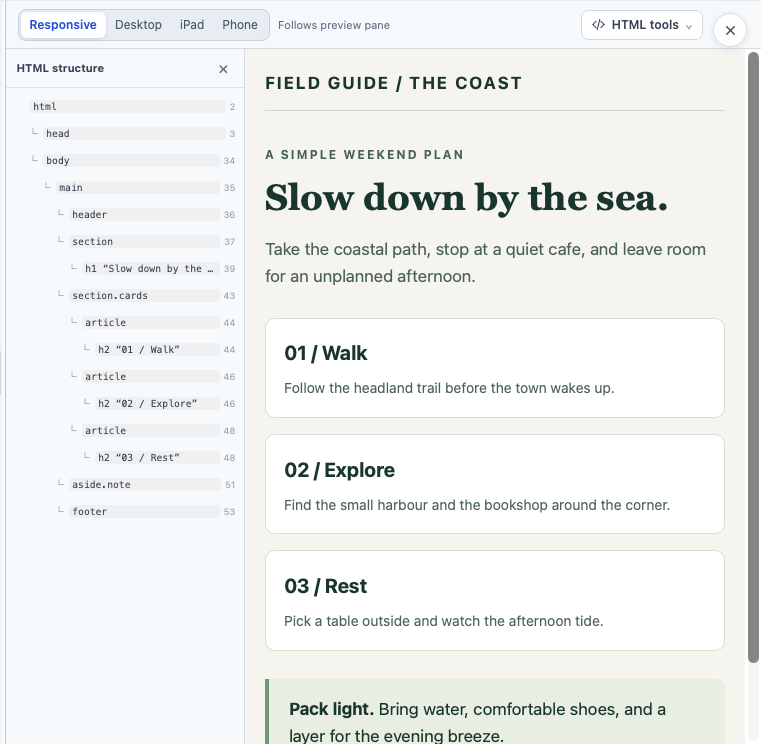
Actual App screenshot: HTML structure helps you navigate the source without manually searching every nested tag.
For example, choose the section containing the itinerary cards, then inspect the card markup in the editor. This is useful when a page has several similar containers or when you are reviewing unfamiliar HTML.
For an element you can see in the rendered page but cannot easily find in the source, Pro adds Preview and code location. It connects the preview element with its HTML location. This is separate from the structure outline: one starts with the document's hierarchy, while the other helps match a visible element to code.
Check local CSS, scripts, and images when a page looks wrong
The demonstration keeps its CSS inside the HTML file, so it needs no separate stylesheet. Your own project may have several files.
For example, put styles.css next to the HTML file and banner.webp in an images subfolder. The HTML references would look like this:
<link rel="stylesheet" href="styles.css">
<img src="images/banner.webp" alt="A coastal landscape">
Keep those resources inside the available HTML folder. Check the filename and relative path if a style or image does not appear. A file elsewhere on your Mac is not automatically available to the preview.
Pro local resource inspection can report missing or unreadable files and references outside the available folder. The Pro preview error panel helps inspect JavaScript runtime errors and failed resource loads. These are different checks: a document can have valid tags while still referencing a missing stylesheet or a script that fails at runtime.
Check the same page at a smaller width
The preview toolbar includes Responsive, Desktop, iPad, and Phone modes. Responsive follows the preview pane; Desktop uses selected dimensions. The named iPad and Phone modes require Pro, and the rotate button swaps width and height.
For the sample grid, a phone-width preview should show one card per row. Check for horizontal scrolling, headings that are too large, controls that wrap awkwardly, and content covered by fixed elements. If the layout fails, change its HTML or CSS and check again.
These are viewport checks inside the Mac App. They help you review layout while editing; final checks in your target browsers and on physical devices are still needed. See responsive HTML preview on Mac for the device-size workflow and its real operation video.
Which HTML features require Pro?
| Feature | Availability |
|---|---|
| HTML source with a rendered preview | Without Pro |
| Responsive and Desktop preview modes | Without Pro |
| HTML structure outline and source-line navigation | Without Pro |
| Paired-tag editing, quick edits, and document issue checks | Without Pro |
| Named Phone and iPad preview modes | Pro |
| Local resource inspection | Pro |
| Preview and code location | Pro |
| Preview error panel | Pro |
Start with one local HTML file and the basic preview. Use the structure outline and document checks as the page grows, and add the Pro device and inspection tools if your work needs them. The local preview is for HTML and browser-side content; it does not run server-side application code.
Get notePad++++ on the Mac App Store for HTML editing, local preview, and everyday text work in one native Mac app.
FAQ
Does notePad++++ have an HTML preview, and how do I refresh it?
Yes. Preview renders the HTML page beside its source. In our current App check, a text edit did not appear immediately. Saving with Command-S, closing Preview, and opening it again showed the changed page. Automatic refresh after each edit was not confirmed.
Can it preview local CSS, JavaScript, and images?
Yes, for files the local preview can read in the authorized HTML folder. Keep relative resource paths correct. Pro local resource inspection can report missing files, unreadable paths, and references outside the available folder.
Can I preview a phone layout without uploading my HTML?
Yes. Phone and iPad viewport presets are Pro features, and the rotate button swaps the width and height. The example shown here is a local file; it does not need to be published to a website for this preview.
Which HTML tools require Pro?
Basic HTML preview, Responsive and Desktop modes, HTML structure, paired-tag editing, quick edits, and document issue checks are available without Pro. Named Phone and iPad modes, local resource inspection, preview-to-source location, and the preview error panel require Pro.
Is this a visual drag-and-drop website builder?
No. It is a source editor with an integrated preview and navigation tools. It does not replace HTML with proprietary visual blocks.
Can I jump from the preview back to the HTML source?
Yes. The source-location mode can identify a rendered element and reveal the corresponding part of the HTML document.
Notepad++ is a trademark of its respective owner. notePad++++ is an independent macOS text editor and is not affiliated with, endorsed by, or approved by the official Notepad++ project.